Managing invoices is a pain. Before the information can be used by an accounting system, reporting tool, or internal workflow, someone has to copy it from a PDF, check it, and put it into the correct fields. Manual entry makes that process slow and leaves plenty of room for missed values, inconsistent formatting, and simple typing errors.
The pipeline usually starts with data extraction and ends with normalization before an invoice can become a useful business record. Dates need to follow a consistent format, monetary values need to be stored correctly, and repeating line items must remain connected to the invoice they came from. A readable PDF is useful to a person, but it is not the same as structured data that can be searched, filtered, or sent to another system.
AI can automate this process. Instead of building a rigid template for every invoice layout, you can define the records your system needs and let PdfParse extract the matching values. PdfParse provides a low-cost way to process invoices, normalize the results, preserve relationships between records, and review the source documents when something needs verification. This guide walks through the complete workflow.
Define the invoice schema
For this demonstration, we'll create an invoice-processing schema for a fictional company called Meridian Supply Group. The company receives invoices from multiple vendors and needs to store invoice numbers, dates, totals, currencies, and individual line items in a consistent format.
We'll separate this information into two related tables. The invoices table will contain one record for each invoice, while the line_items table will store the products or services listed on that invoice. Keeping these records connected allows the company to search, validate, and export the extracted data without losing the relationship between an invoice and its individual charges.
For now, we'll create the schema manually. Start with an invoices table and add the fields that should appear once on each invoice:
| Field | Type | What it stores |
|---|---|---|
vendor_name | text | The company that issued the invoice |
invoice_number | text | The invoice identifier as printed |
invoice_date | date | The issue date |
due_date | date | The payment due date |
subtotal | number | Total before tax |
tax_amount | number | Tax charged on the invoice |
total_amount | number | Final amount due |
currency | text | The printed currency code |
Dates should use date fields, monetary values should use numeric fields, and names, identifiers, and currency codes should be stored as text. You can also provide a short extraction instruction for each field to clarify what PdfParse should retrieve from the document.
Next, select Add array column, keep Child table selected, and name the child table line_items. Add fields for description, quantity, unit_price, and amount. PdfParse automatically includes an id field and an invoices_id foreign key, which keeps every extracted line item connected to the invoice it came from.
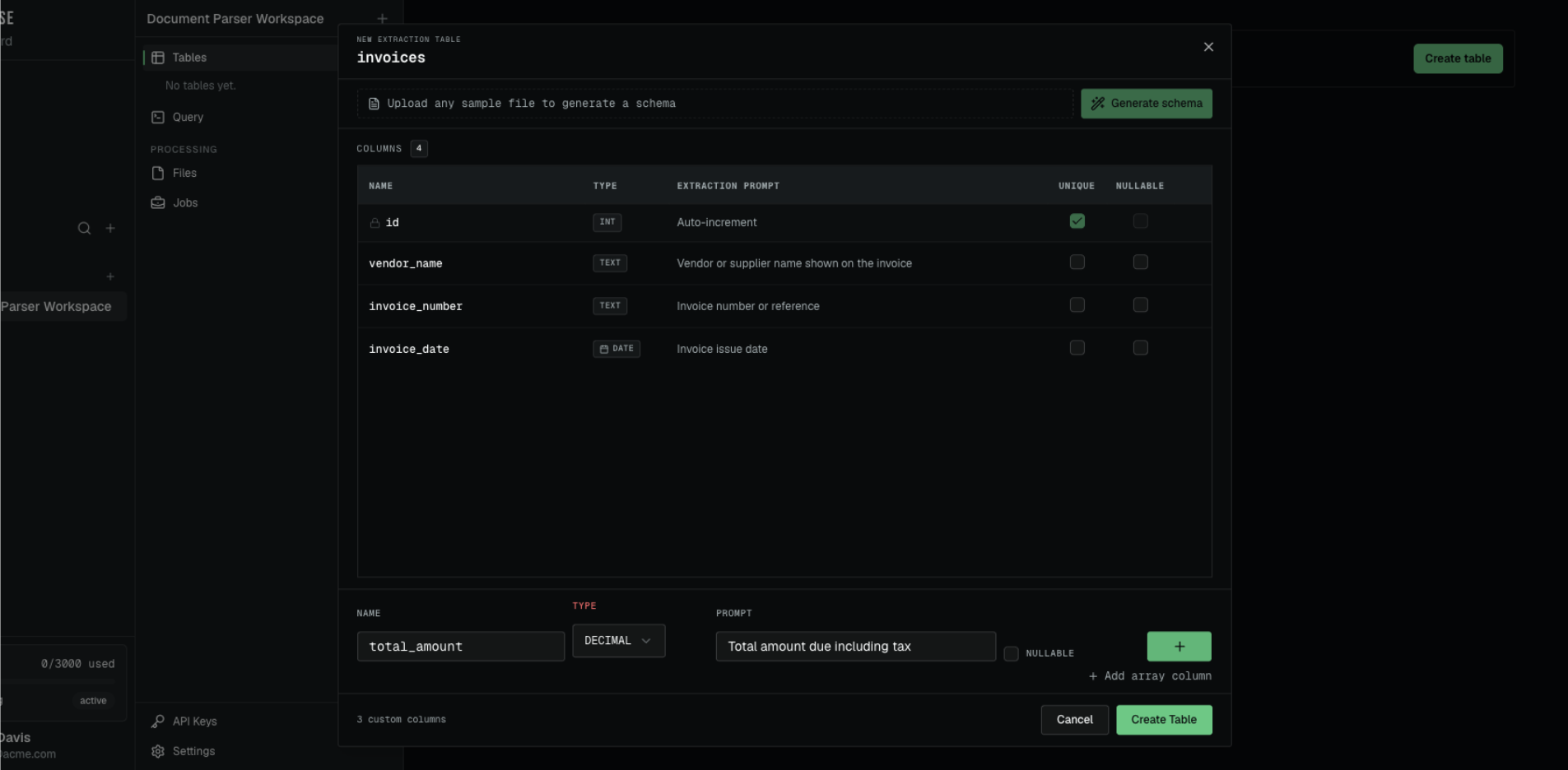
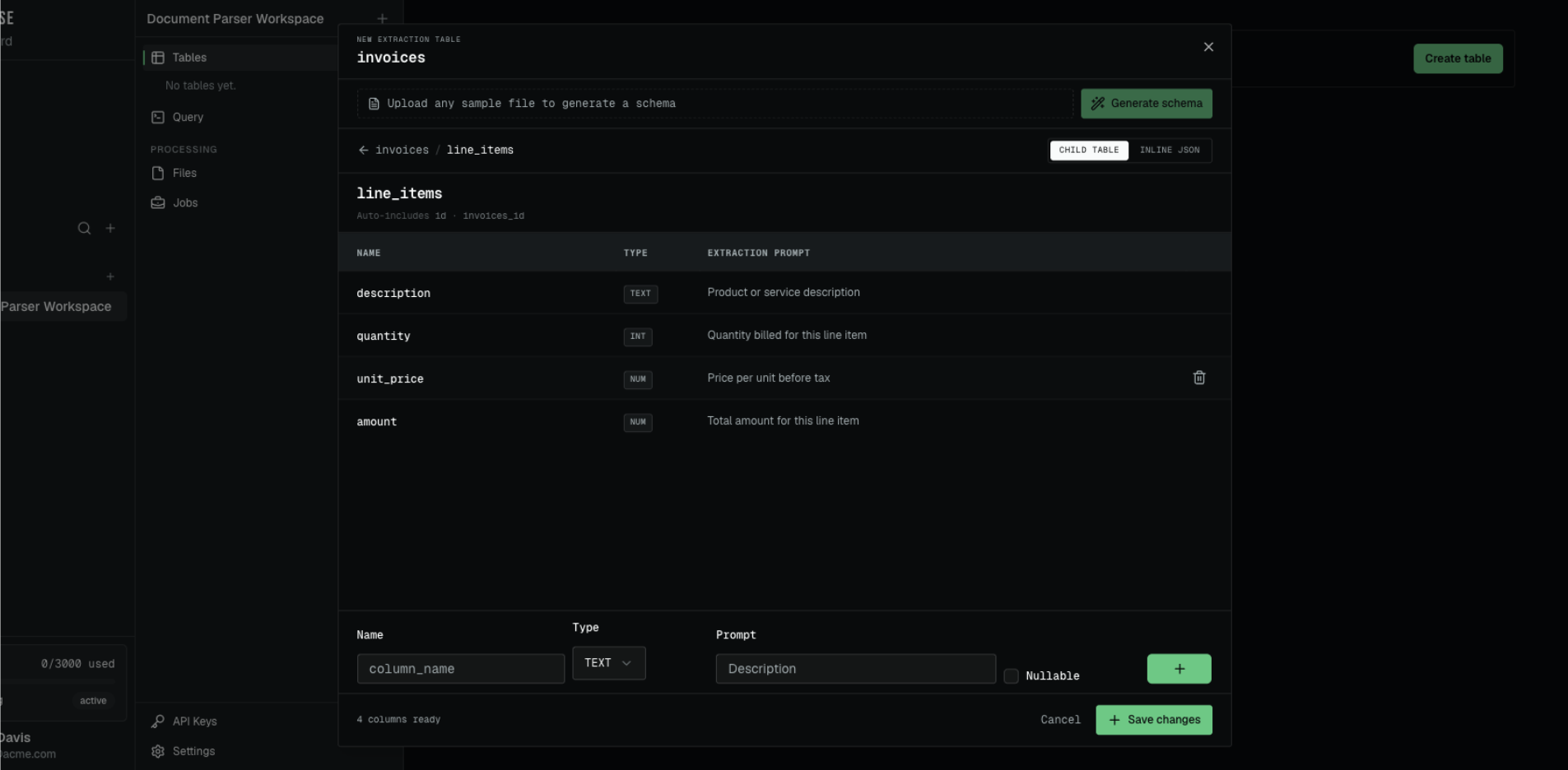
Review the names, types, extraction instructions, and relationships before saving the schema. These choices determine how invoice information will be normalized when the files are processed.
Upload the invoice PDFs
Once the schema is ready, open the invoices table and select Manage Files. You can browse for your PDFs or drag them directly into the upload area.
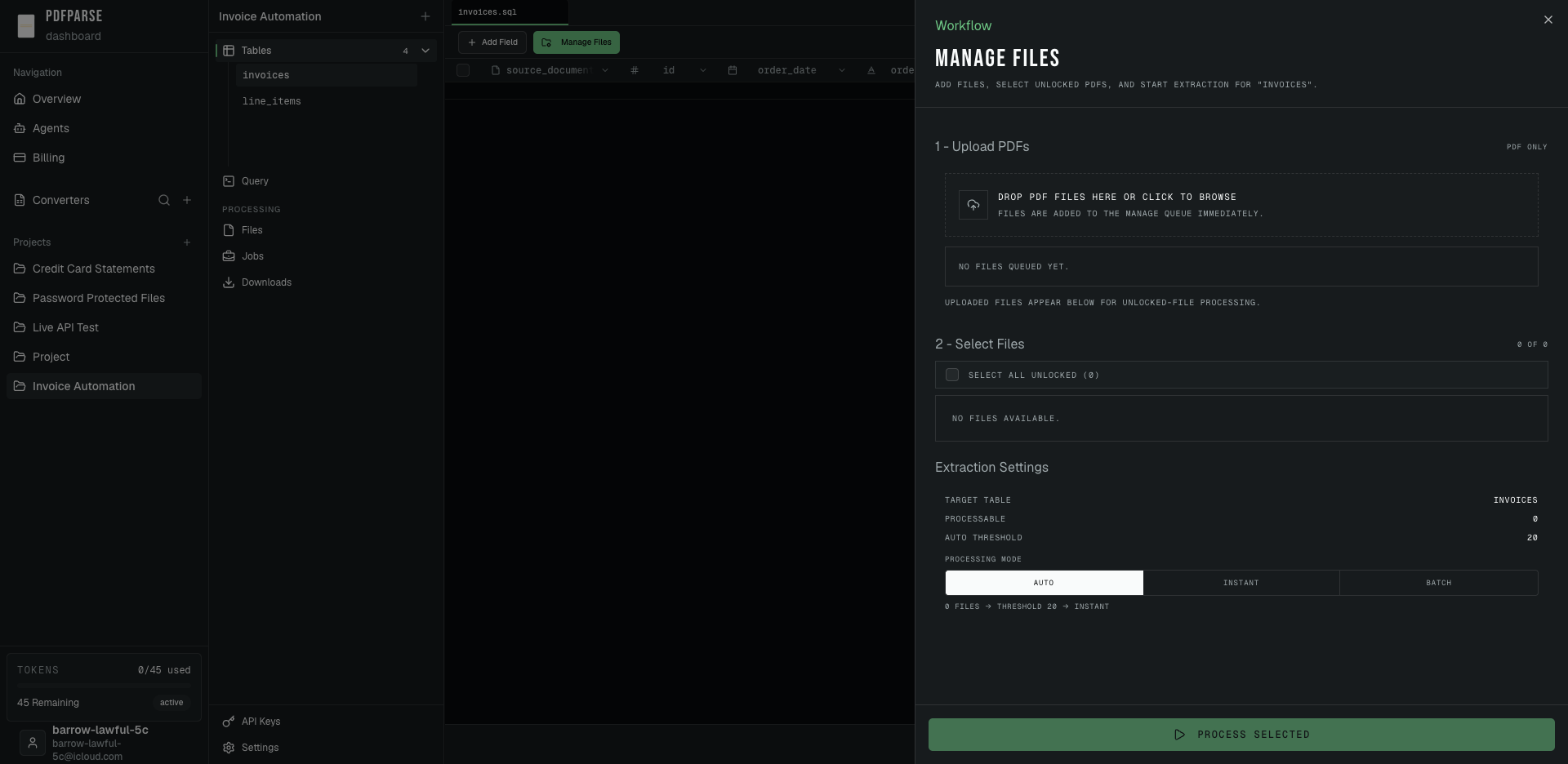
Start with a small, representative set of invoices. It is easier to identify a missing field or unclear extraction instruction with a few documents than after processing a large backlog.
Select a processing mode
After the files have uploaded, select the invoices you want to extract and choose a processing mode:
- Auto chooses a mode based on the number of selected files.
- Instant sends the files for immediate processing.
- Batch places the files into the batch-processing queue.
In Auto mode, 20 PDFs or fewer use instant processing. Selecting 21 or more automatically switches the job to batch processing. You can also select Batch manually for a smaller group.
Batch workloads are divided into groups of up to 50 PDFs. If you submit more than 50 files, PdfParse separates them into additional queued batches, so you do not have to split the upload yourself. Instant jobs process up to three documents concurrently within the job; the remaining documents wait for a processing slot.
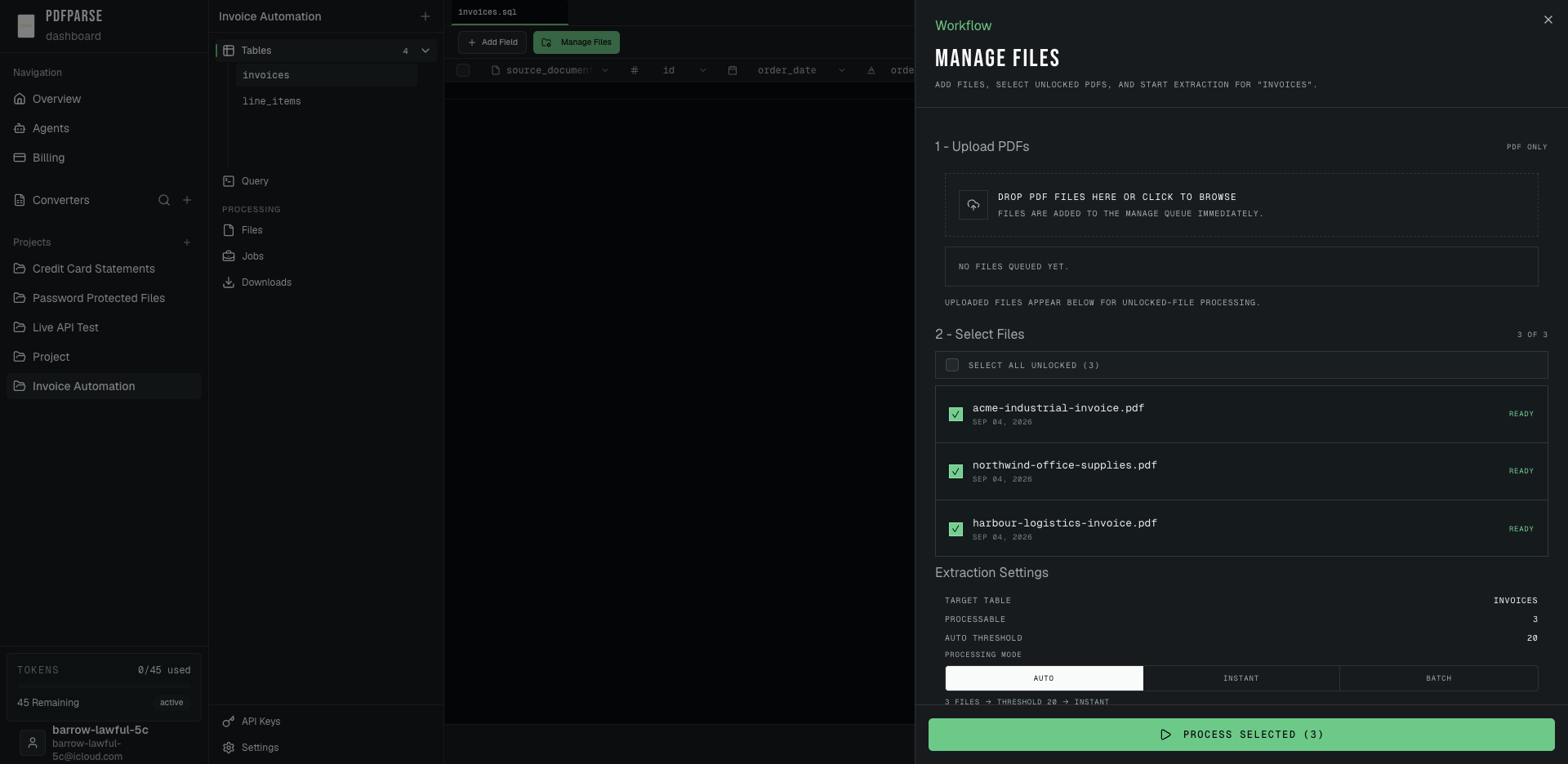
When the selection and effective mode look correct, click Process Selected.
Monitor the extraction
PdfParse shows a compact progress strip above the active table with the number of finished documents and the completion percentage. Completed invoice records appear in the invoices table as extraction continues, while repeating charges are written to line_items.
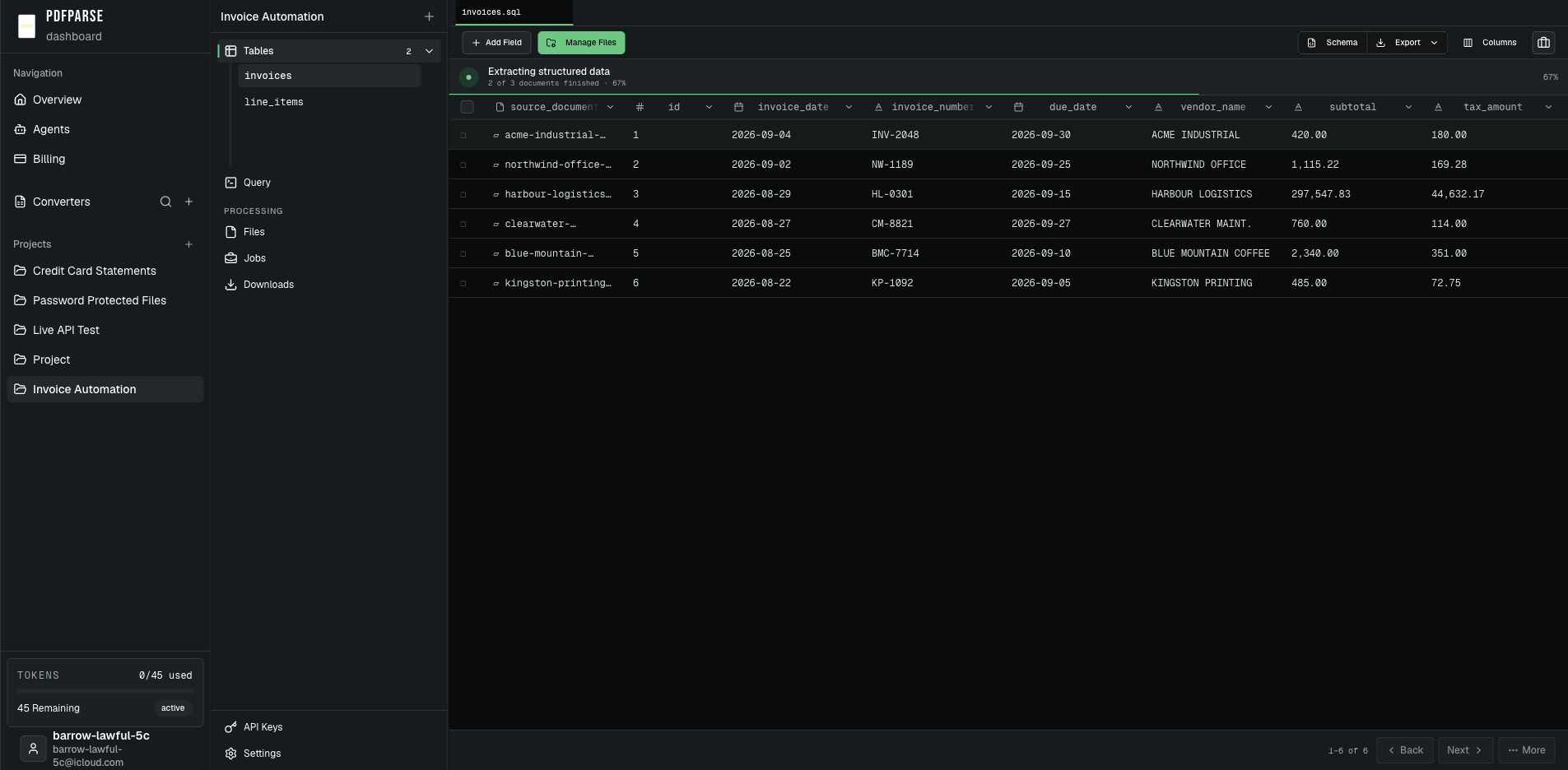
If a job finishes with errors, PdfParse reports successful and failed documents separately. Use Review & Retry to inspect the affected files and the error associated with each one. You can retry failed documents without submitting the successful invoices again.
Before retrying, confirm that the document matches the schema. Failures can come from an unreadable PDF, an unexpected invoice layout, or an extraction instruction that does not describe the intended value clearly enough. Correct the underlying issue where possible instead of repeatedly submitting the same input unchanged.
Review extracted records against the source PDF
Extraction should not end at a green completion message. Open the invoices table and review a few records before sending the data downstream. Check that dates use the expected format, totals are numeric, currency values are consistent, and each invoice number belongs to the correct vendor.
Select the source-document link for a record to open its PDF beside the extracted table. This gives you a direct comparison between the stored fields and the invoice that produced them without leaving the workspace.
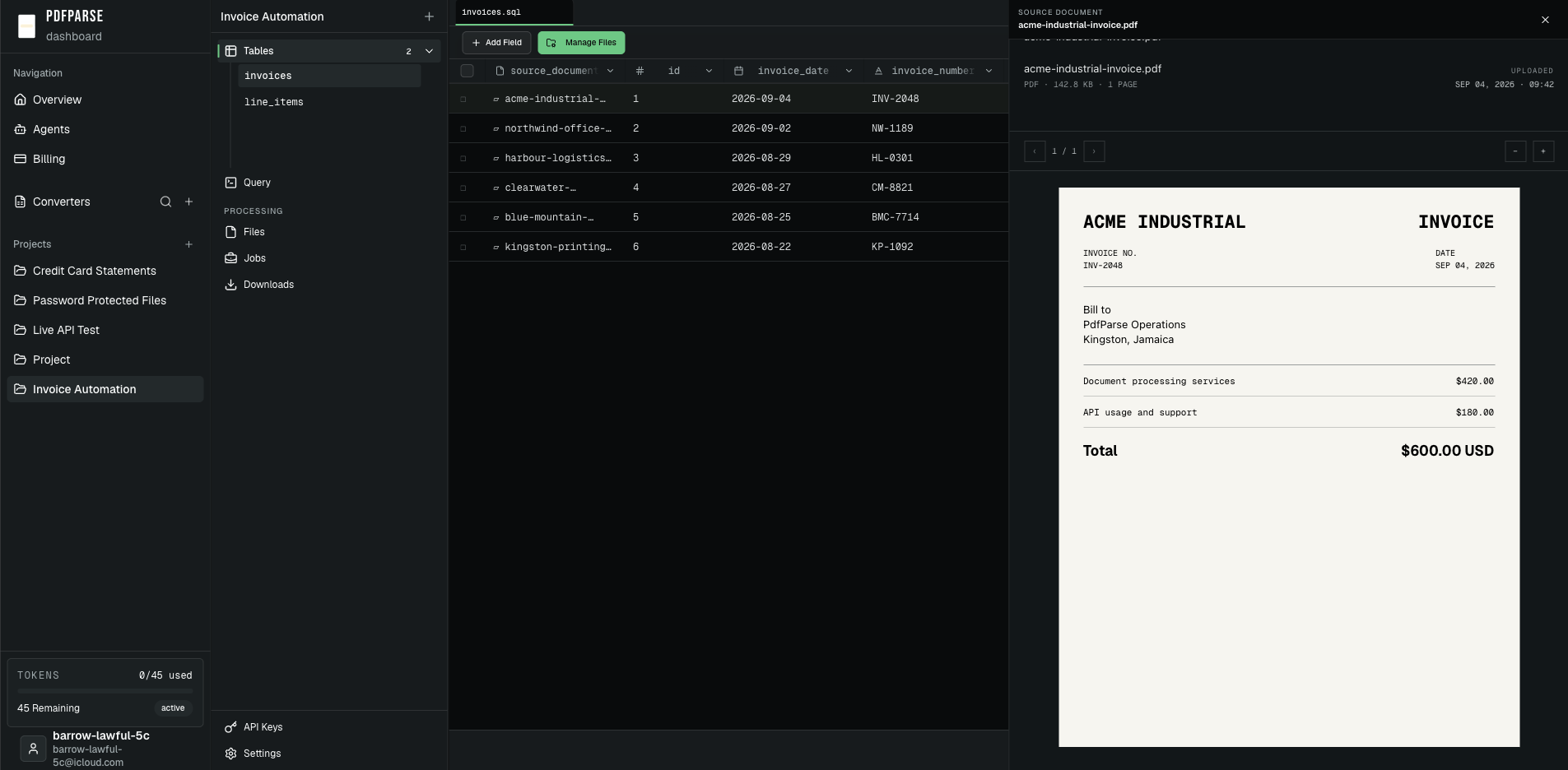
Do not review only the parent record. Open line_items and confirm that repeating products or services were separated into individual rows and remain linked to the correct invoice. Pay particular attention to quantities, unit prices, tax, and totals because small errors in those fields can affect reconciliation and reporting.
If a successful record needs another extraction pass after you change its schema or extraction instructions, PdfParse exposes re-analysis controls for selected records and columns. Test this workflow with a small set before applying it to a large group.
Export the structured invoice data
Once the records have been reviewed, select Export above the table. You can download the current dataset as CSV or JSON.
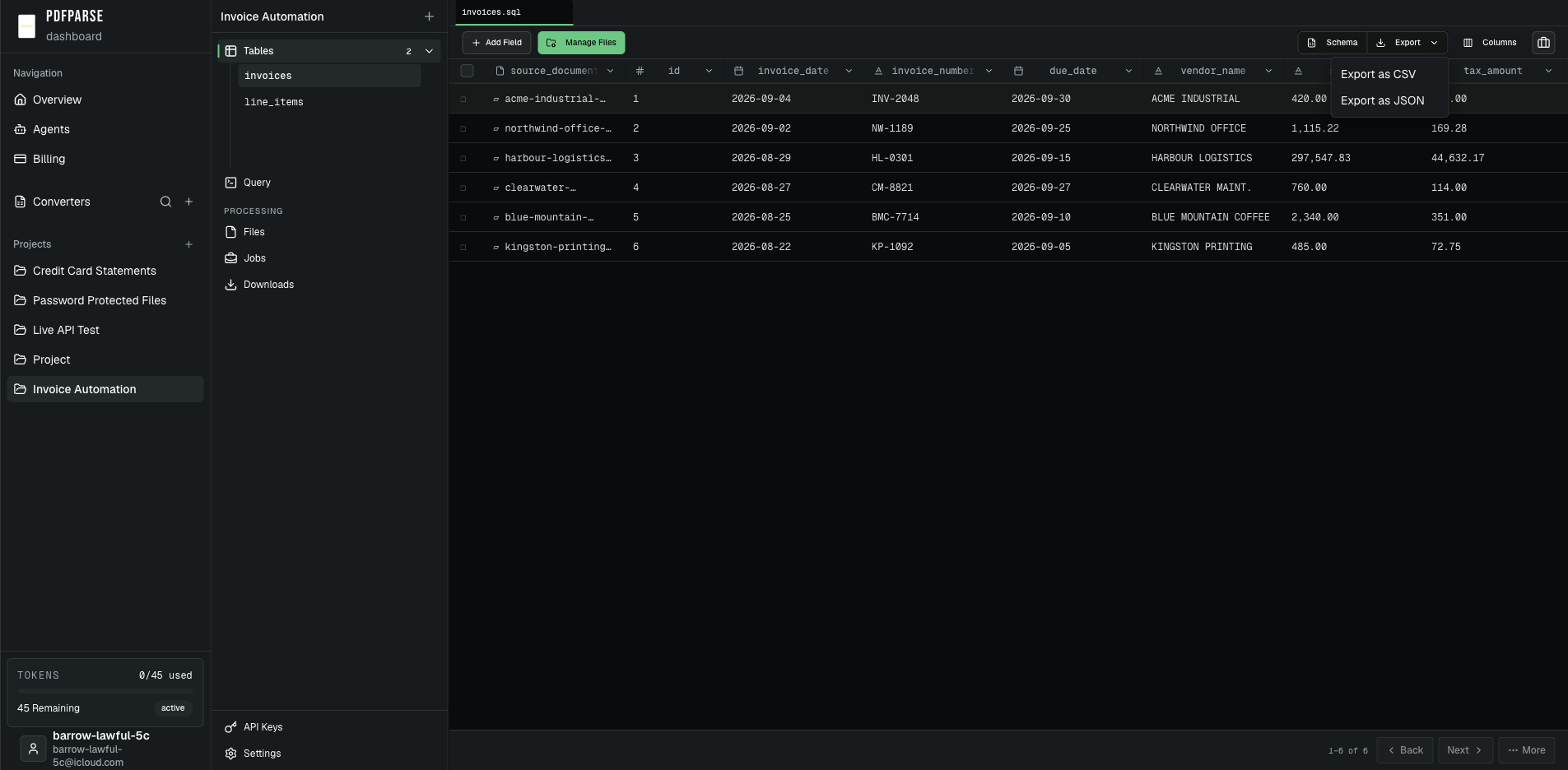
Choose CSV when the next step involves a spreadsheet, reconciliation workflow, or accounting import. Choose JSON when the records will be sent to an API, application, or automated data pipeline.
The parent invoice table and its line-item table are separate datasets, so export the tables required by the destination workflow. Preserve their relationship identifiers if the receiving system needs to reconnect each charge to its invoice.
Build the workflow around reviewed data
The result is more useful than a block of OCR text. Meridian Supply Group now has normalized invoice records, separate line items, source-document links for verification, and export formats that can be used by the rest of the business.
The same workflow can handle invoices from different vendors without creating a fixed template for every layout:
- Define the business records you need.
- Upload representative invoices.
- Process them instantly or in batches.
- Review failures and compare extracted values with the source PDFs.
- Export the approved records to the next system.
Ready to automate your invoice workflow? Try the invoice parser, compare plans on the pricing page, or contact us to discuss a higher-volume extraction pipeline.