Converting a PDF to CSV is easy. Converting it without scrambling the table is the actual job. A useful CSV keeps every value in the row and column it came from — anything less is just text with commas in it.
This guide uses a controlled process: extract one invoice table, then check the CSV properly before you let it anywhere near a spreadsheet.
What good output looks like
The source PDF contains this table:
| Date | Invoice | Vendor | Amount |
|---|---|---|---|
| 2026-06-03 | INV-1042 | Northwind Office Supply | 297.00 |
| 2026-06-07 | INV-1048 | Contoso Shipping | 84.50 |
The CSV has to carry the same records:
Output that merely looks similar isn't good enough. Count the rows. Check the column names. Read the cells. "Close enough" is not a data format.
1. Identify the PDF type
First question: does this PDF actually contain text?
Try to select a single word in your PDF viewer. If it highlights, you usually have a digital PDF. If the entire page selects as one block, that page is an image, and OCR has to read it before anything can extract it.
The type changes what can go wrong:
| PDF type | Main risk | Required control |
|---|---|---|
| Digital PDF | Incorrect reading order | Check column order |
| Scanned PDF | OCR character errors | Check dates, numbers, and codes |
| Mixed PDF | Different behavior on each page | Test all page types |
Don't assume a clean-looking page is digital. A crisp scan is still one big image.
2. Define the required result
Decide what the CSV must contain before you convert anything. This is a planning step, not a screen in the converter — nobody will prompt you for it.
For the sample invoice table:
| Column | Type | Rule |
|---|---|---|
date | date | Use YYYY-MM-DD |
invoice_number | text | Keep the value as printed |
vendor | text | Keep the complete vendor name |
amount | number | Remove the currency symbol |
PdfParse infers the CSV schema from the first PDF you upload, so your job is to confirm the inferred columns match this list.
Settle on one name per concept and stick to it. Mixing amount, total, and value across files is how reconciliation turns into archaeology.
And keep codes as text. Given the chance, a spreadsheet will turn 00142 into 142 and never mention it.
3. Convert the PDF to CSV
Open the PDF to CSV converter. Then:
- Complete the security check if you use the temporary converter.
- Select Open converter.
- Select Upload PDF in the empty workspace.
- Select one or more PDF files.
- Wait while PdfParse infers the CSV schema from the first PDF.
- Wait while the upload and extraction start automatically.
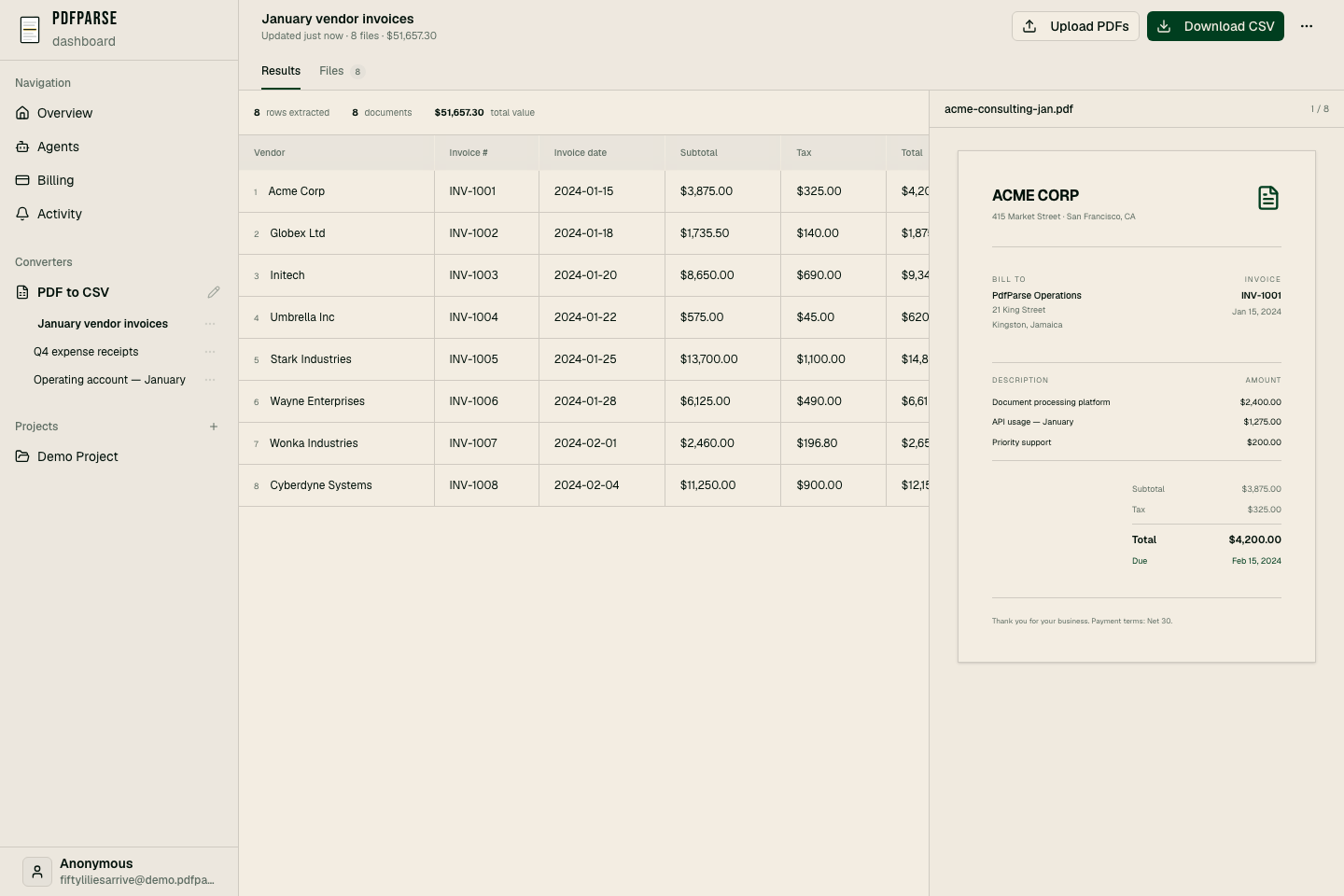
- Review the extracted rows in the Results tab.
- Select a row to open its source PDF on the right.
- Select a dataset tab when PdfParse creates related CSV tables.
- Select Download CSV.
The temporary converter accepts up to three PDF files and five pages in total, and the workspace expires after two hours — long enough to test, not to hoard.
There is no manual column-mapping step in this workflow. PdfParse infers the document structure on its own and may produce one dataset or several related ones.
Run a small sample first, and make it your ugliest file — the one with the awkward layout. Don't touch the full set until the sample comes out clean.
On scanned documents, compare the small characters with extra care. OCR's greatest hits are 0 and O, plus 1, I, and l.
4. Keep table rows together
A PDF stores visual positions, not a real table. A description that wraps onto a second line can easily become a phantom second row if the extraction isn't careful.
The rules:
- One source record becomes one CSV row.
- A wrapped description stays in the same record.
- A page header never becomes a data row.
- A repeated table header never becomes a data row.
- A page total never becomes a line item.
So this cell — one description spread over two lines:
...stays one field:
The quotes matter: any field containing a comma, a quotation mark, or a line break needs them. A proper CSV writer adds them automatically.
5. Handle merged cells
Merged cells are where table structure goes to hide. One vendor name might apply to three invoice rows while only appearing on the first visual row.
Pick one of two output rules:
- Repeat the vendor name in each CSV row.
- Put the vendor in a parent table and the invoices in a child table.
Flat CSV wants the first rule. A relational database wants the second.
What you can't do is leave the second and third vendor cells blank because the empty cells "mean" same-as-above. Outside the visual table, a blank cell means nothing — it just means missing.
6. Validate the CSV file
Don't stop at the first row. Run the boring checks — they're boring because they work.
Check the structure
- Count the source records.
- Count the CSV rows.
- Confirm that each row has the same number of columns.
- Confirm that all required headers are present.
Check the values
- Compare dates with the source PDF.
- Compare the largest and smallest amounts.
- Check negative values.
- Check blank cells.
- Check codes that have leading zeros.
- Check descriptions that contain commas.
Check the totals
If the source has a total, compare it with the sum of the CSV values:
Use Decimal for money. Binary floating point and financial totals are a famously bad pairing.
7. Know the limits
Some pages will always want human review:
- handwriting
- low-resolution scans
- rotated pages
- tables without visible column boundaries
- tables that continue across pages
- nested tables
- merged cells with an unclear meaning
- password-protected PDFs
If a PDF has a password, remove it only when you have permission, then upload the unlocked copy.
Use CSV when the data is flat
CSV is the right call when the destination is a spreadsheet, an import tool, or a straightforward analysis.
Need nested objects or arrays? Use JSON. Need related tables and SQL queries? Use SQLite.
If the destination is still undecided, run the same invoice through the CSV vs JSON vs SQLite comparison before choosing an export.
Start here: the PDF to CSV converter. You can also review the available record types, the API documentation, and pricing.