Every invoice holds the same handful of facts: who sent it, its number, when it is due, what was bought and what it costs. Getting those facts out of a PDF usually means someone retyping them into a spreadsheet, one invoice at a time, and hoping no total gets mistyped along the way.
This guide replaces that with a repeatable workflow. You will describe the fields you need once, upload a batch of invoices, and get two linked tables back: one row per invoice, and one row per line item. You will also check each row against the PDF it came from before exporting the result as CSV or JSON.
In short:
- Define an
invoicestable for values that appear once per invoice, and aline_itemschild table for the charges that repeat. - Upload the PDFs and select Confirm. PdfParse picks instant or batch processing for you.
- Each extracted row keeps a link to its source PDF, so you can verify a value in two clicks.
- Failed or unrouted documents wait in Human review instead of writing bad rows.
- Export each reviewed table as CSV for spreadsheets or JSON for software.
Define the invoice tables
The examples in this guide use a fictional distributor, Meridian Supply Group, which receives invoices from many vendors in different layouts. It needs the same fields from every one of them.
Split the data in two. Values that appear once per invoice go in an invoices table; charges that repeat go in a line_items table linked to it. Keeping them separate means a ten-line invoice becomes one invoice row and ten line-item rows, instead of one row stuffed with a list.
- Open your project, go to Tables and select + Create table. Name the table
invoices. - Add these fields. Give each one a short extraction prompt that says what to read, such as "Total amount due, after tax".
| Field | Type | What it stores |
|---|---|---|
vendor_name | text | The company that issued the invoice |
invoice_number | text | The invoice identifier as printed |
invoice_date | date | The issue date |
due_date | date | The payment due date |
subtotal | number | Total before tax |
tax_amount | number | Tax charged on the invoice |
total_amount | number | Final amount due |
currency | text | The printed currency code, such as USD |
- Select Add array column, keep Child table selected and name it
line_items. Adddescription,quantity,unit_priceandamount.
PdfParse adds an id to each table and an invoices_id column to line_items. That foreign key ties every charge back to the invoice it came from.
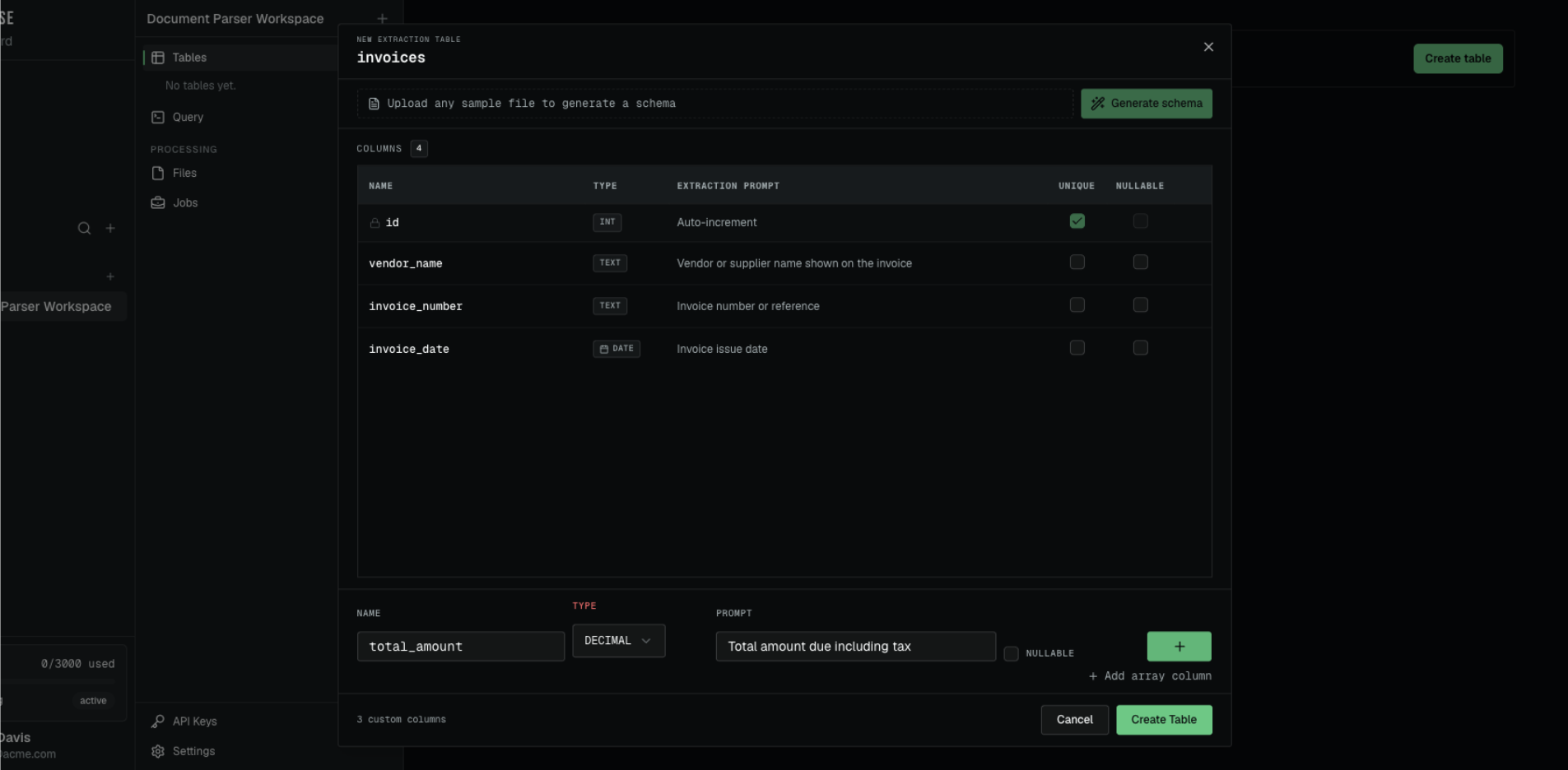
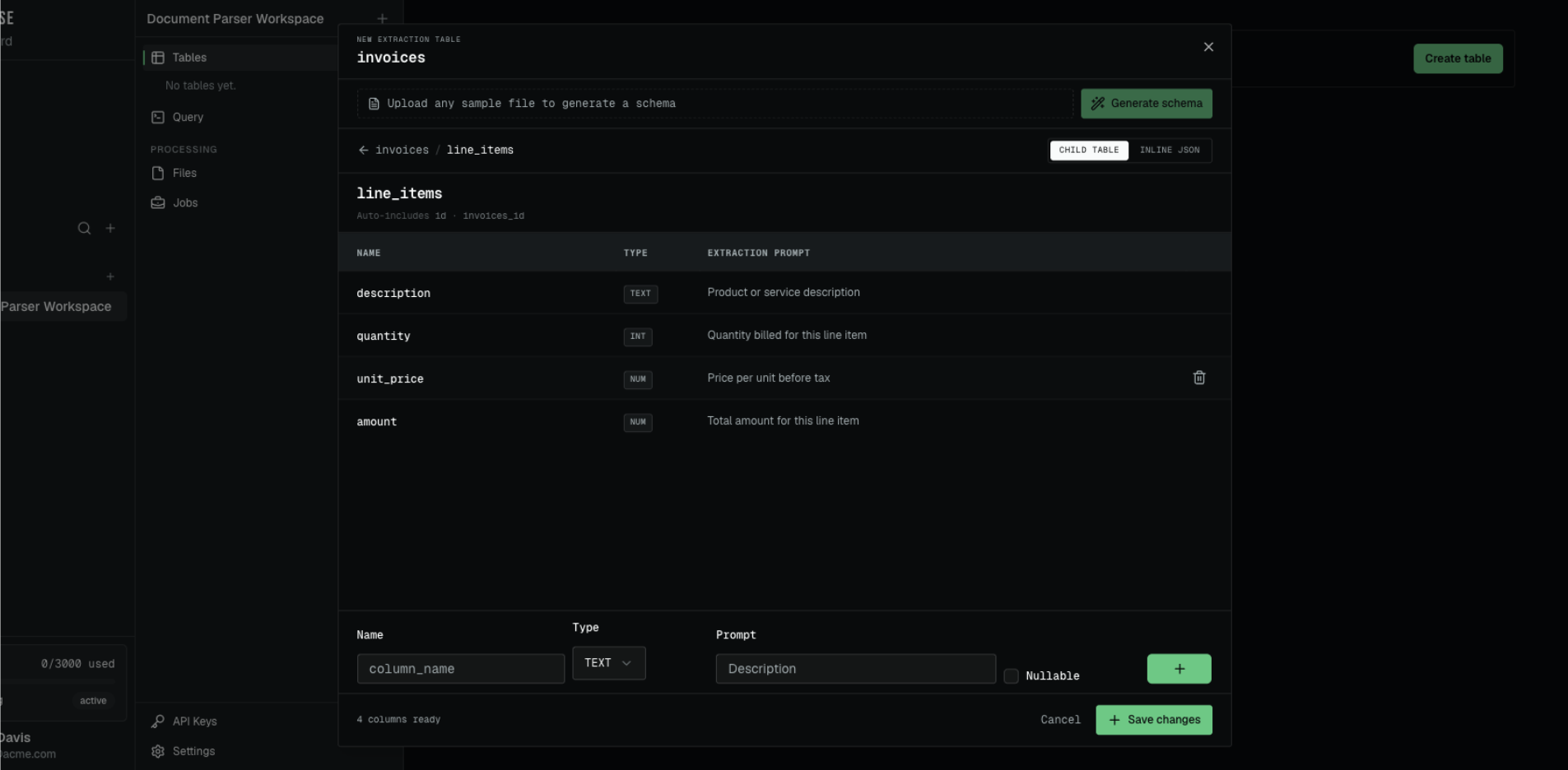
Types decide how values are stored, so choose them deliberately. A date field normalizes "Sep 6, 2026" and "06/09/2026" to the same date, and a number field stores 1,284.50 as a value you can sum. Keep identifiers such as invoice numbers as text, so leading zeros survive.
Upload a first batch of invoices
Start with five to ten invoices from different vendors. A small, varied set shows you quickly whether a prompt is too vague or a field is missing, before you process a backlog.
- Open the
invoicestable and select + Upload PDFs. The Upload PDFs panel opens beside the table. - Drag your PDFs onto the drop zone, or click it to browse.
- Wait until every file in the queue shows as uploaded.
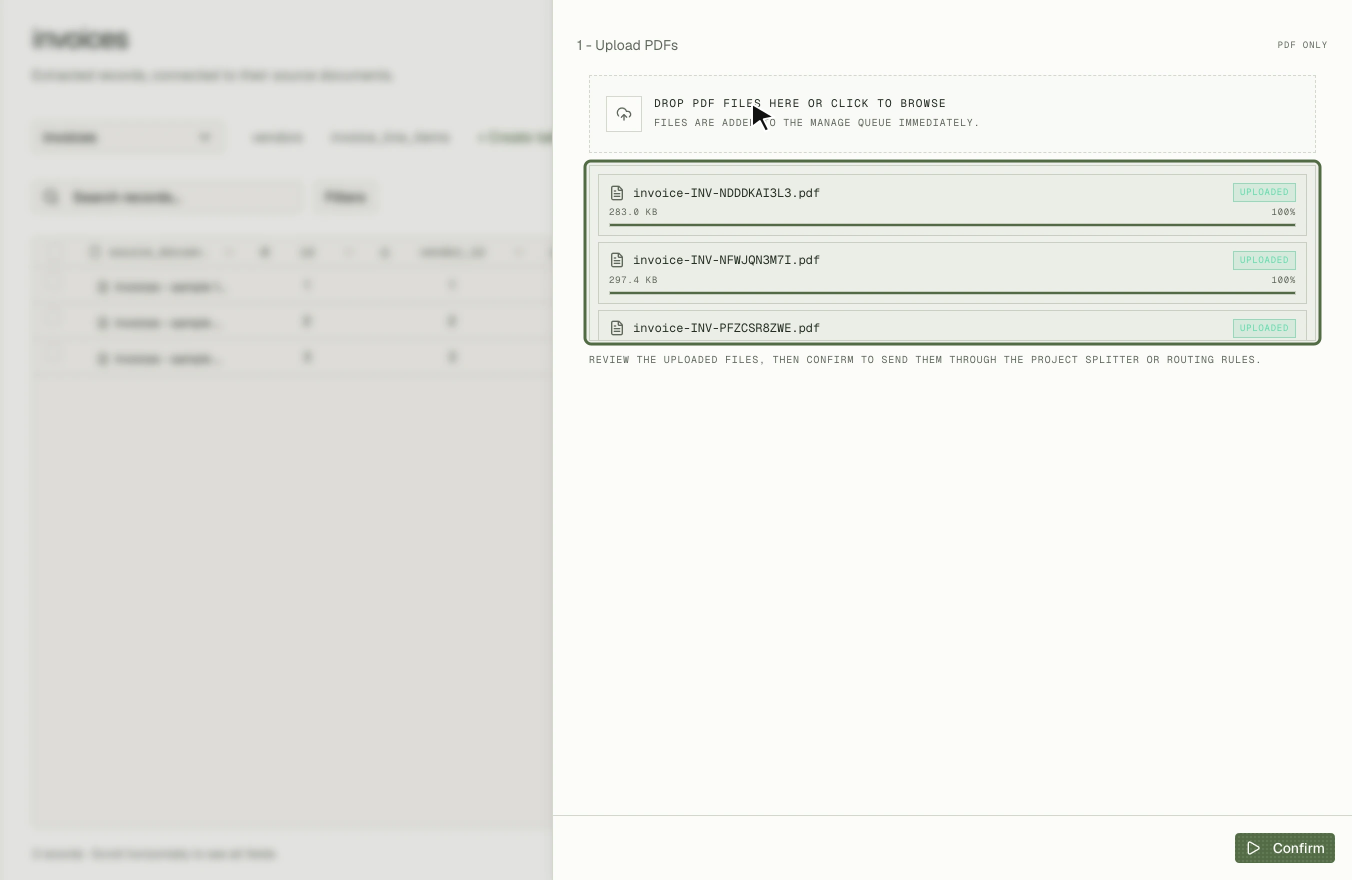
Start extraction
Select Confirm below the upload queue. PdfParse sends the invoices through the project's routing rules and starts extraction. A Processing Started notice confirms how many PDFs and pages were sent.
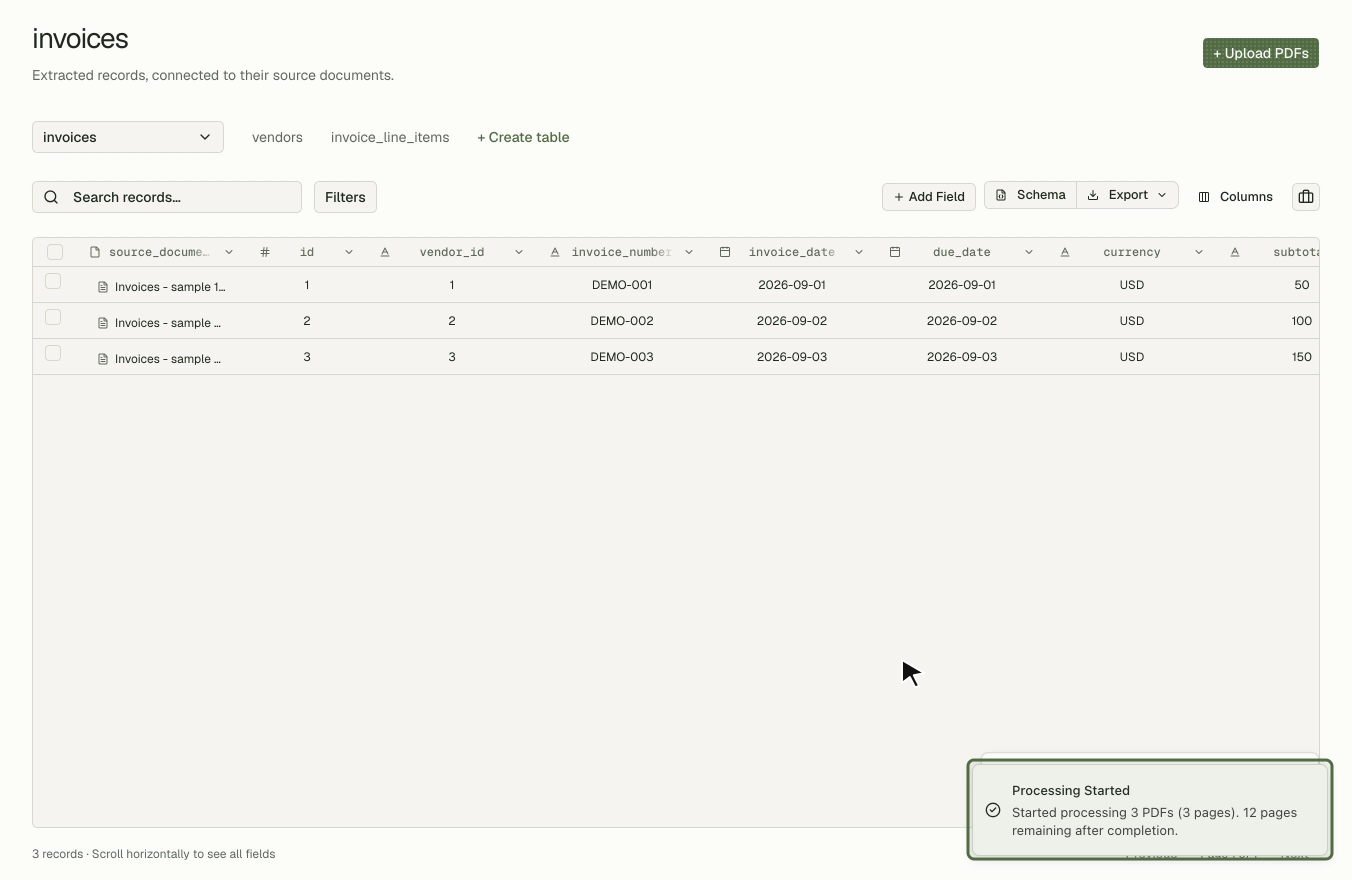
You do not choose a processing mode. A group at or below the project's instant-mode threshold is processed immediately, three documents at a time; a larger group goes to the batch queue in groups of up to 50. The threshold is 20 PDFs by default, and you can set it anywhere from 1 to 50 in the project settings.
Watch the rows arrive
A progress strip above the table counts finished documents and shows the completion percentage. Invoice rows appear in invoices as each document finishes, and their charges appear in line_items.
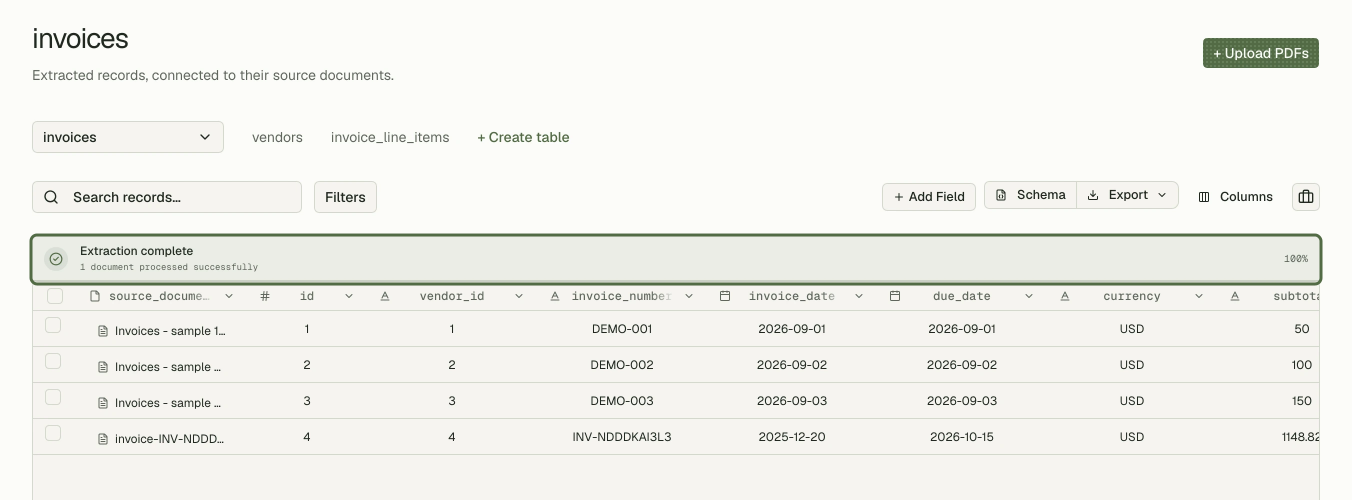
If a document fails, PdfParse saves no partial row for it. The failure appears under Human review in the sidebar, with the error that caused it, and you can retry that document on its own. An upload that matches none of the project's routing rules also waits there until you choose its table.
Before you retry, fix the cause. Most failures come from an unreadable scan, an unusual layout, or a prompt that does not describe the value precisely. Sending the same input again unchanged usually fails the same way.
Check each row against its PDF
A finished progress strip tells you the extraction ran, not that it is correct. Check a few rows from each vendor before anything leaves PdfParse.
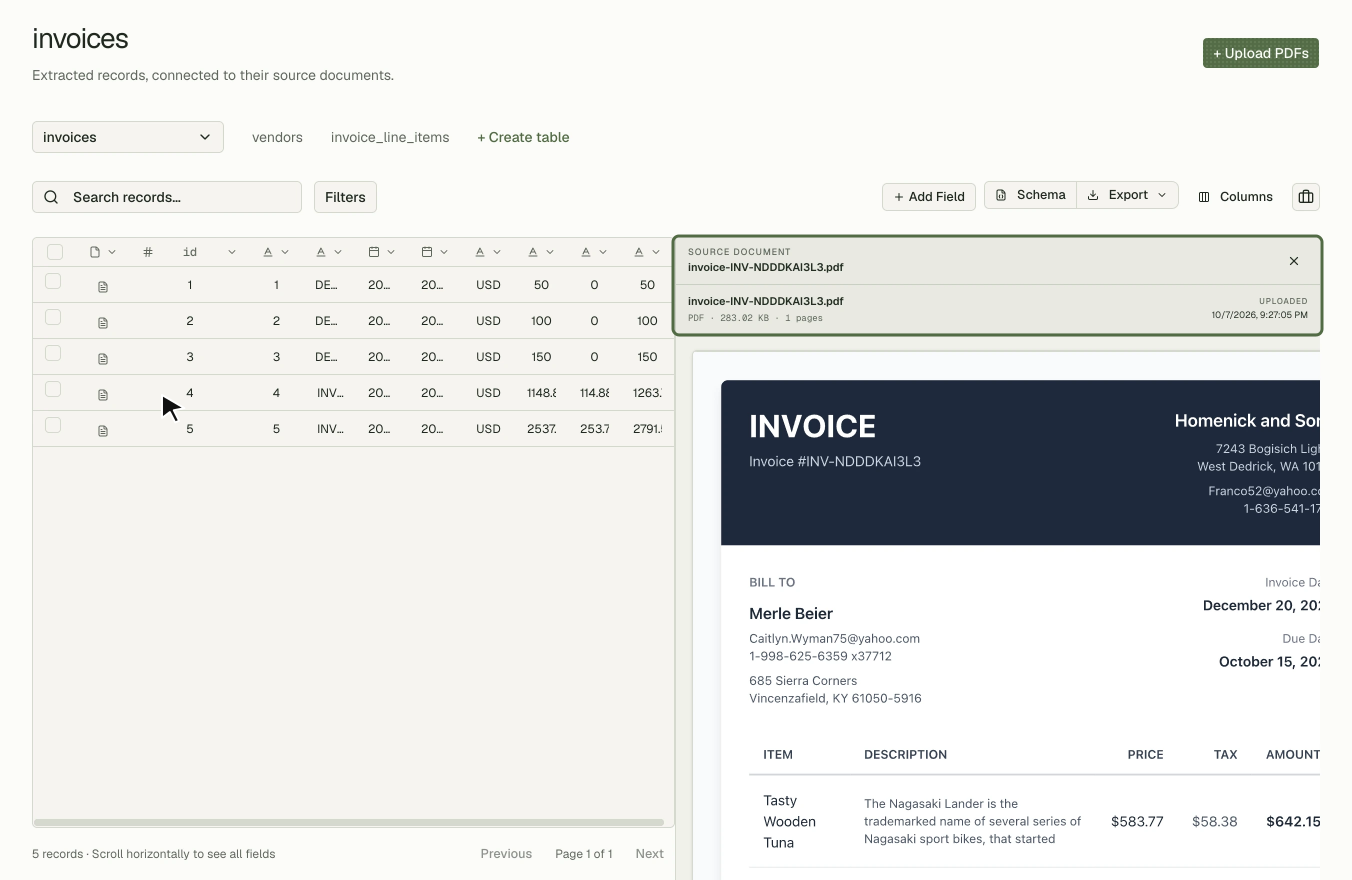
- In the
invoicestable, select the source-document link on a row. The original PDF opens beside the table. - Compare the row with the PDF: the vendor, the invoice number, both dates, and every amount.
- Open
line_itemsand filter by the same invoice. Each product or service should be its own row, and the amounts should add up to the invoice'ssubtotal.
When the line items do not add up, the cause is usually a charge that spans two lines on the PDF or a discount row. Tighten the line_items prompts, then use the re-analysis controls on the affected rows rather than uploading the documents again.
Export the reviewed data
- Select Export above the table.
- Choose Export as CSV or Export as JSON.
PdfParse prepares the file in the background and notifies you when the download is ready.
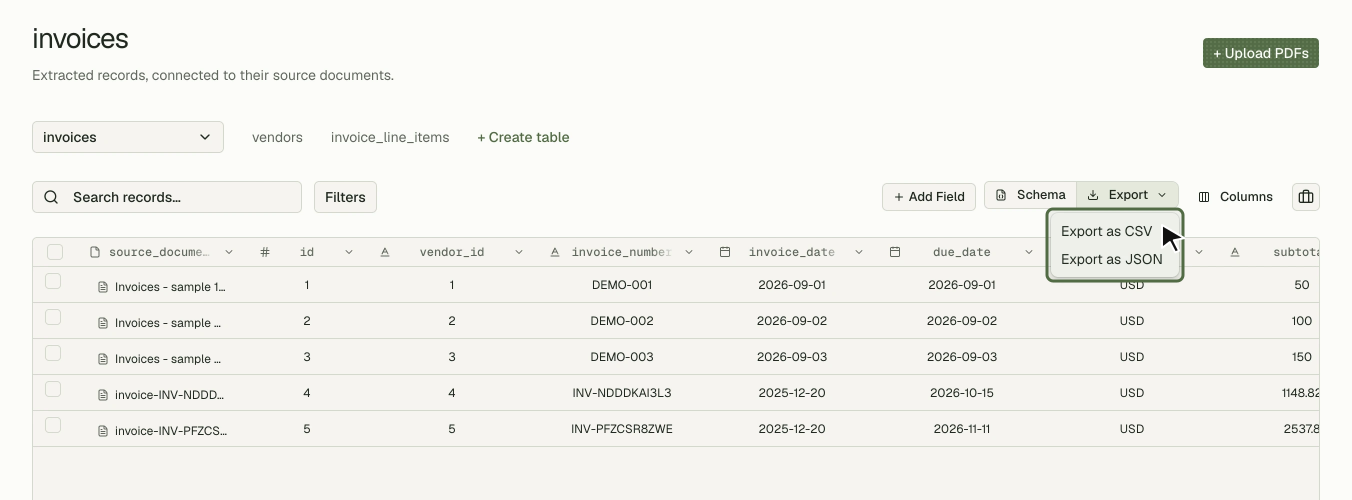
CSV suits spreadsheets, reconciliation and accounting imports. JSON suits APIs and data pipelines. Each table exports separately, so export both invoices and line_items if the destination needs the charges, and keep the id and invoices_id columns so the two files can be joined again.
Frequently asked questions
Do I need a template for each vendor's layout?
No. The fields and prompts describe what to find, not where it sits on the page, so the same schema reads invoices from different vendors.
What happens to an invoice that fails?
PdfParse writes no partial row. The document waits under Human review with the error, and you can retry it alone after fixing the cause.
Can I process hundreds of invoices at once?
Yes. Groups above the instant-mode threshold go to the batch queue automatically, in groups of up to 50, so you do not need to split the upload yourself.
Should line items be a child table or a JSON array?
Use a child table when you want to filter, sum or join individual charges. Use an array when the charges only travel together with the invoice. JSON arrays vs child tables compares the two in detail.
Next steps
Run the workflow on a handful of your own invoices with the invoice parser. To have invoices arrive without uploading them yourself, see extracting invoice data from email attachments. For the same flow from code, read how to run an extraction job.