An invoice PDF in your accounts-payable mailbox is not yet an accounting record. Someone still has to move the attachment into an extraction tool, check the vendor and total, and make sure the individual charges remain connected to the invoice.
This guide takes one PDF through that entire handoff. You will create a project inbox, send an invoice attachment, and verify one invoice record with two related line items. Once that works, you can use the same address for recurring intake.
The main path uses the PdfParse interface. You need a project you can manage, an active subscription with available page tokens and storage, an email account you can send from, and a representative invoice PDF that you are authorized to process. You do not need to connect a mailbox or write code.
Choose a test invoice with a checkable result
Start with one readable PDF, not your entire invoice backlog. Use a document with a known vendor, invoice number, currency, and at least two line items so you can check both the header and the repeating charges.
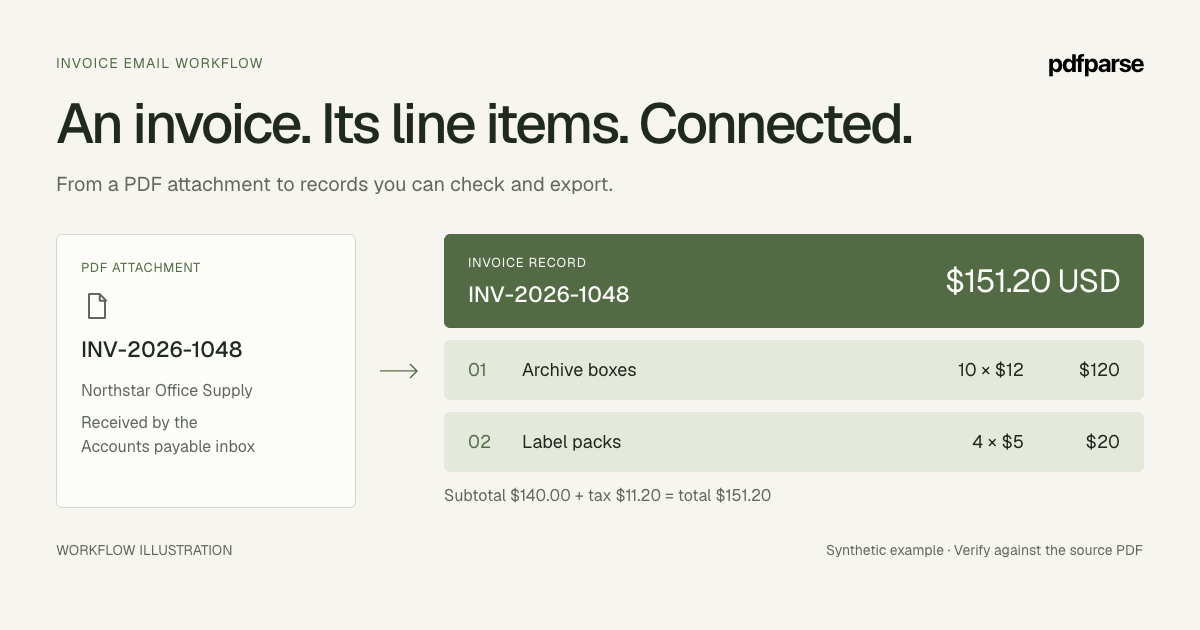
Our example is a synthetic Northstar Office Supply invoice received by Meridian Supply Group. Use these values as a model for the checks, replacing them with the values printed on your own test invoice:
| Header field | Expected value |
|---|---|
| Invoice number | INV-2026-1048 |
| Vendor | Northstar Office Supply |
| Invoice date | 2026-09-09 |
| Due date | 2026-10-09 |
| Purchase-order reference | PO-48219 |
| Currency | USD |
| Subtotal | 140.00 |
| Tax | 11.20 |
| Total | 151.20 |
| Item | Quantity | Unit price | Amount |
|---|---|---|---|
| Archive boxes | 10 | 12.00 | 120.00 |
| Label packs | 4 | 5.00 | 20.00 |
Open the PDF and check that the values are visible before you send it. A statement, receipt, or purchase order may resemble an invoice but require a different schema. If the supplier sent a portal link, download the authorized PDF first; the inbox processes attachments rather than following links in the message.
Define the invoice and its line items
The inbox supplies documents. Your project tables define what to extract from them. Create an invoices table with the following fields, or review the equivalent fields in your existing schema.
| Field | Type | Extraction instruction |
|---|---|---|
vendor_name | text | Company issuing the invoice, not the customer |
invoice_number | text | Invoice identifier exactly as printed |
invoice_date | date | Date the invoice was issued |
due_date | date | Printed payment due date; leave empty if absent |
purchase_order_number | text | Purchase-order reference printed on the invoice |
currency | text | Currency of the invoiced amounts |
subtotal | number | Total before tax, as printed |
tax_amount | number | Total tax charged |
total_amount | number | Final invoice total |
In the parent table, select Add array column, keep Child table selected, and create line_items. Add description as text and quantity, unit_price, and amount as number fields. PdfParse adds the parent relationship; keep that relationship instead of copying the invoice number into each item as a substitute.
Save the fields and review the extraction instructions. An invoice number is text even when it contains only digits: leading zeroes can be meaningful. Keep missing values distinct from zero, and do not ask extraction to invent a due date that the PDF does not contain.
If you need the full table setup walkthrough, follow automating invoice data extraction. The child-table guide explains why separate item rows help with querying and reconciliation.
Before email intake, confirm that this PDF can be routed to invoices and extracted with the schema. A tested schema makes it easier to distinguish an intake problem from a document or extraction problem later.
Create an inbox for accounts payable
Open the project that owns your invoice tables. A project can have several inboxes, so this address can serve accounts payable while another handles purchase orders or a separate supplier group.
- Select Inboxes in the project sidebar.
- Select Create inbox and enter
Accounts payableas the Inbox name. Add your test sender under Sender access and select Create inbox to save it. - Select Copy address in the created inbox. Use the exact address copied; the display name is not an email address.
- Open Routing. Choose Send to invoices for an invoice-only source, or Use project classifiers when PDFs need classification. Select Save settings after a change.
- Open Sender access. Under Allowed senders, choose Address for a specific sender or Domain for an exact domain, enter the value, select Add, then Save settings. An empty list blocks every sender.
- Check that the inbox is Active. If it is paused, use Resume before testing.
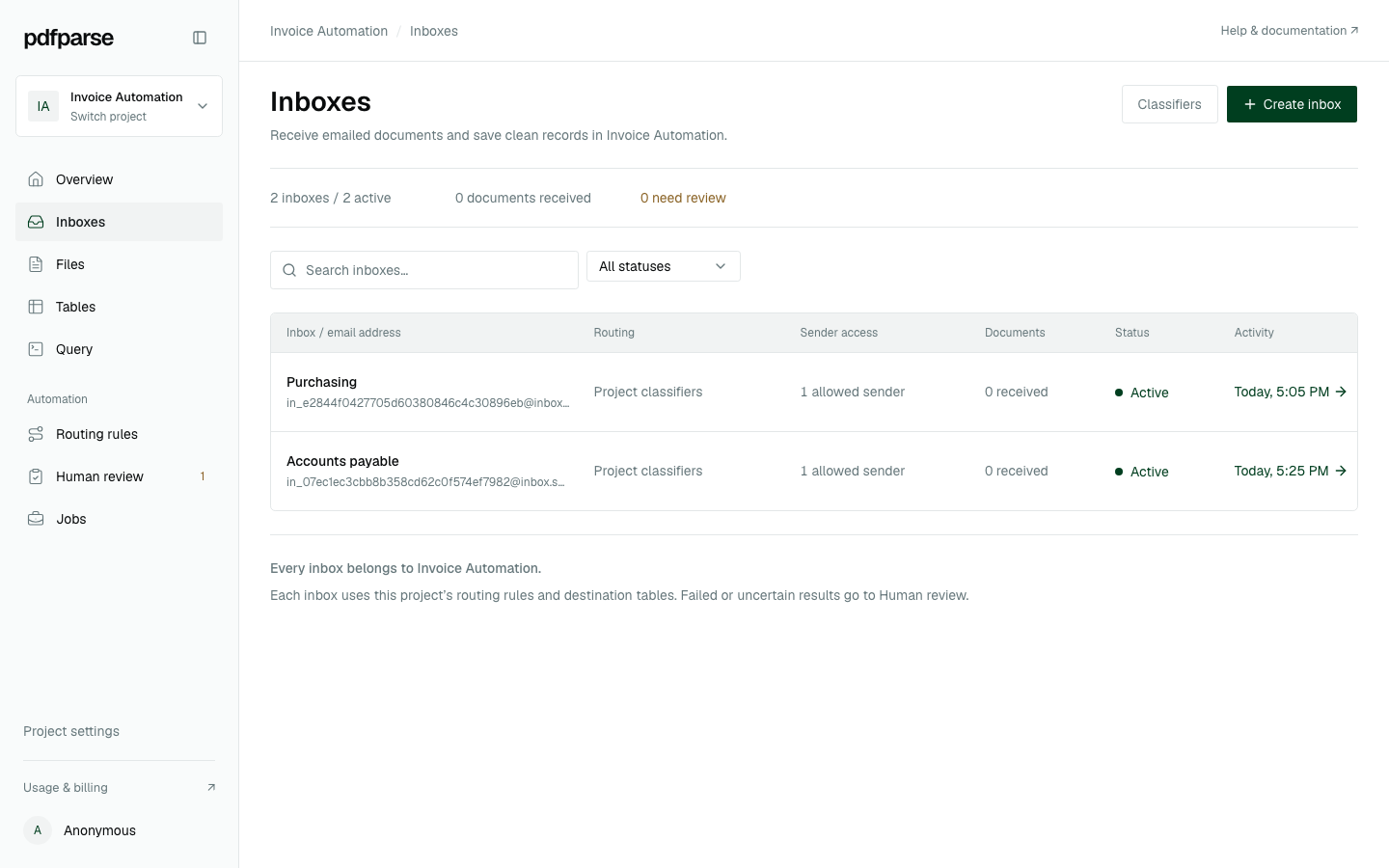
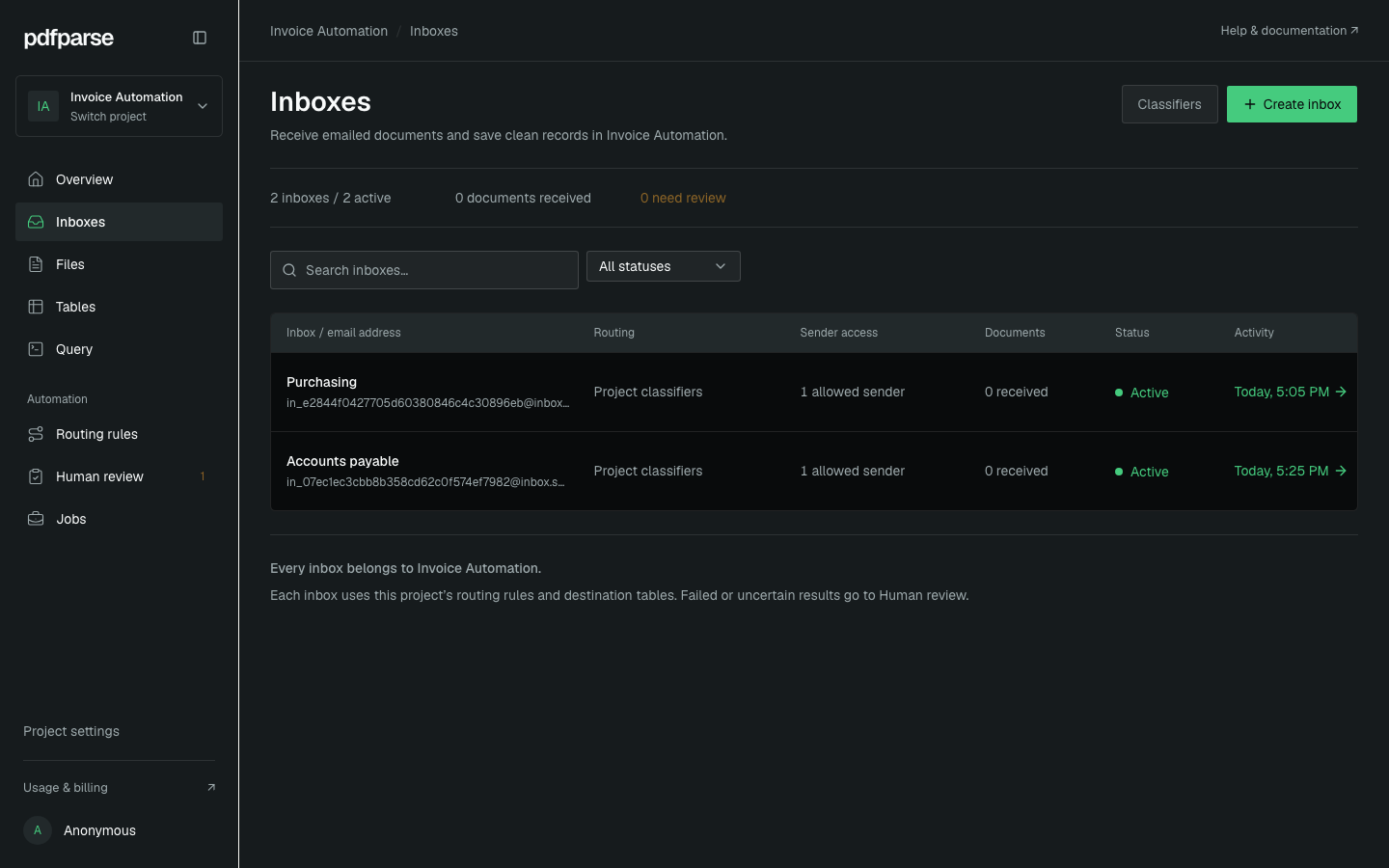
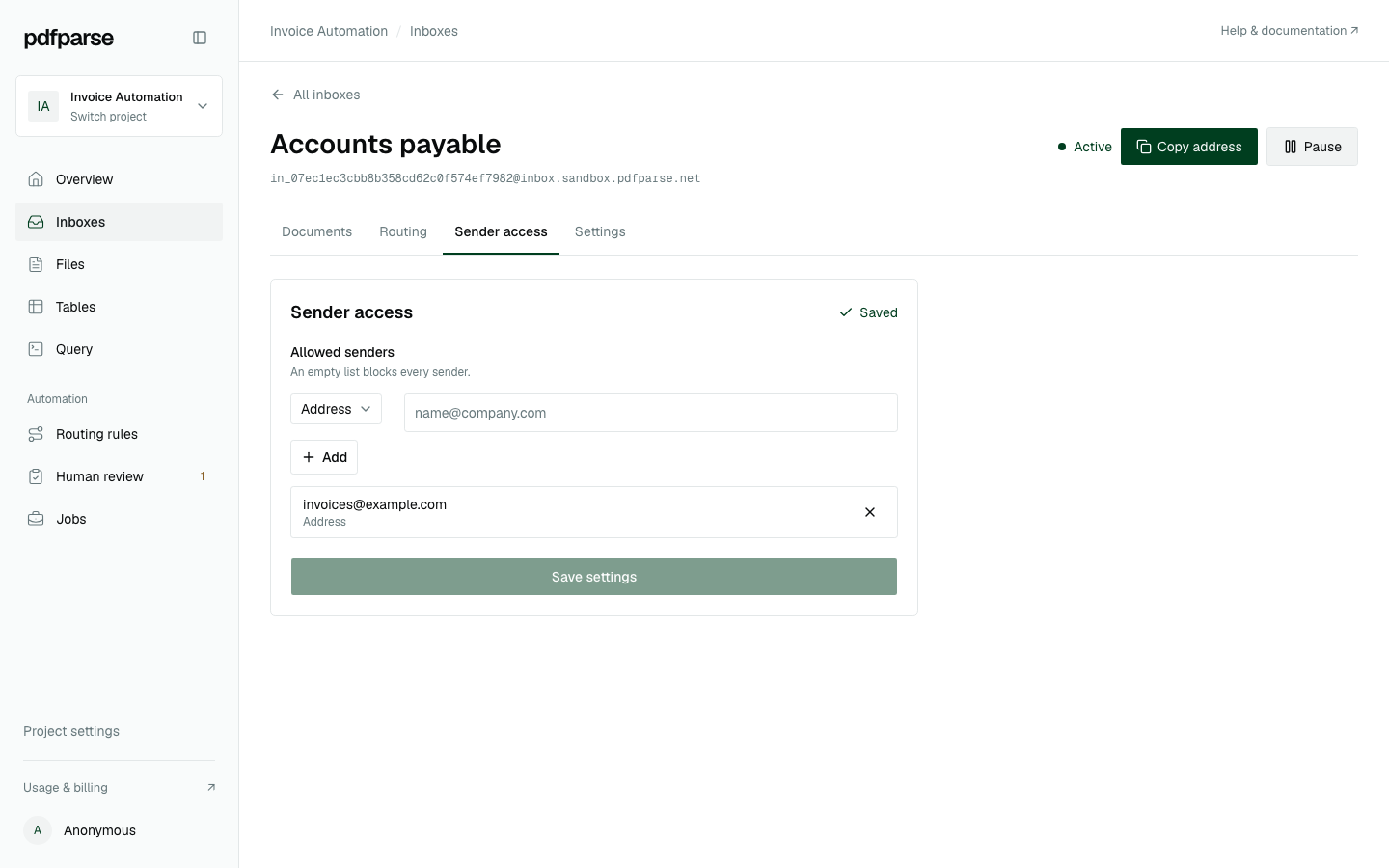
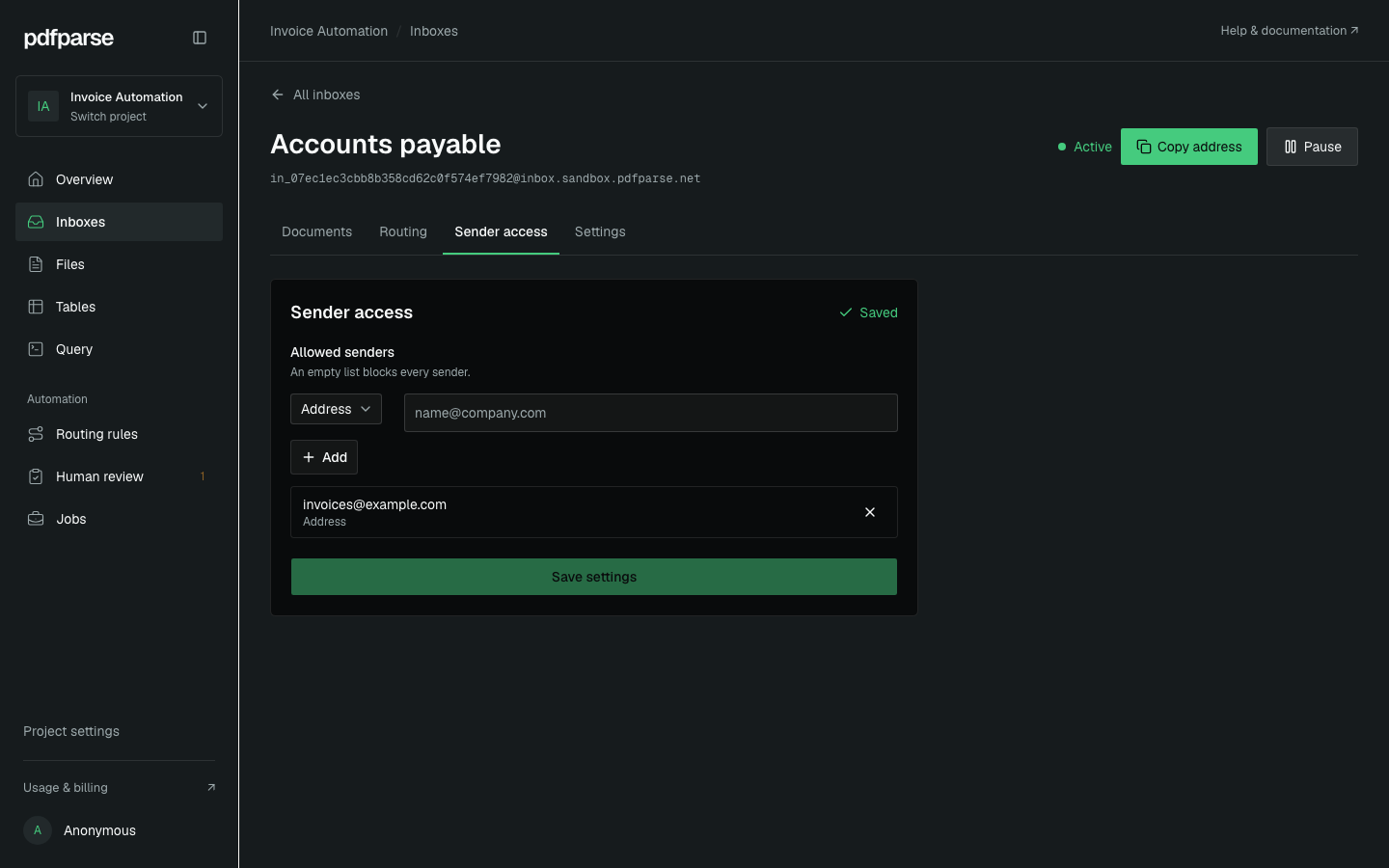
The current-interface screenshots use a local sandbox project named Invoice Automation to represent Meridian's project. Their addresses are disposable demonstration data, and the empty inbox counts show configuration rather than a completed extraction.
The expected result is one inbox address attached to the correct project, with sender access and routing you understand. Check the project name before sharing the address: similarly named tables in another project are a different destination.
Sender access filters the envelope sender, the address supplied during email delivery. It does not cryptographically verify identity. Keep the opaque inbox address private as a bearer secret and replace the inbox if it is exposed. A domain entry allows that exact domain, not every subdomain.
If you intend to forward from a shared mailbox, start with that exact forwarding method. Inspect the sender of the received message before expanding the allowed list; a manual forward and an automated forwarding rule can produce different sender information.
Send the PDF and follow its processing status
Attach the test invoice to a new email or forward the message containing the actual file. Send it to the generated inbox address. A subject such as Invoice INV-2026-1048 can help you recognize your test, but the invoice data must come from the PDF.
- Open the inbox's Documents tab and locate the received message or attachment.
- Confirm that the filename and source correspond to the invoice you sent.
- Inspect the attachment outcome, then follow the accepted PDF into the project's document workflow.
- Check routing and extraction status. If review is required, resolve the document's destination before expecting rows in
invoices.
Success at this step means the correct PDF reached the intended extraction flow. Email receipt alone does not mean extraction is complete. A message can contain several attachments with different outcomes, so inspect each PDF rather than relying on one message-level result.
If nothing appears, check the copied address, sender access, inbox pause setting, and your mail provider's delivery or forwarding result. Exhausted page tokens or storage can automatically pause intake; resolve the account limit before retrying. If the attachment is visible but failed, inspect the reason and the associated document or job before resending. A protected or unreadable PDF may need attention to the document itself.
Compare the invoice and both charges with the source
When extraction finishes, open invoices and locate the row by invoice number and vendor. Use the source-document link to compare it with the PDF.
For our synthetic example, the row should contain INV-2026-1048, Northstar Office Supply, the two dates, PO-48219, and 151.20 in total_amount. These are expected values for the example; verify the actual result rather than assuming it will match.
Open line_items and check these four things:
- There are two item rows for the invoice.
- Both rows point to the correct parent invoice.
- The archive boxes row has quantity
10, unit price12.00, and amount120.00. - The label packs row has quantity
4, unit price5.00, and amount20.00.
Then reconcile the header: 120.00 + 20.00 = 140.00, and 140.00 + 11.20 = 151.20. Perform this check against the PDF and your exported data as appropriate; it is a review step, not a claim that an inbox automatically approves the invoice.
Real invoices may include discounts, freight, several tax rates, rounding, or amounts already paid. If your test has those fields, extend the schema and reconciliation check to match the document. Do not force every invoice to fit the sample's arithmetic.
Add recurring forwarding after the test passes
Once the document and rows are correct, set up a narrow forwarding rule in your email provider if that is how you want future invoices to arrive. Start with the intended sender or a dedicated accounts-payable folder and send another representative invoice through the rule.
The provider manages the forwarding rule. PdfParse does not synchronize your Gmail or Outlook mailbox or import historical messages. It receives the messages sent to the project address and processes their PDF attachments.
Review the first set of forwarded documents. Use Pause if unexpected messages arrive, correct the rule or sender controls, then use Resume. Paused inboxes reject new deliveries and let already accepted work continue. Check the sender's delivery outcome before intentionally resending a message sent during the pause.
Duplicate-delivery protection covers recognized repeat deliveries. It is not a guarantee that an invoice sent in a new email will never create another business record. Check vendor identity, invoice number, and revisions in the workflow that receives your extracted data.
Export a reviewed invoice record
You now have a repeatable route from an invoice attachment to an invoice row and related charges. Before handing off the result, check the currency, total, item count, and parent relationship once more against the source.
Use the table's Export action for CSV or JSON, or use the project's SQLite output when the next step needs connected tables and queries. Export both tables and preserve their identifiers if the receiving system needs invoice details and line items together. The getting started documentation provides the broader project workflow.
Your next step is to set up an invoice inbox in your project and run one PDF through this complete check. See the email PDF parser overview for intake controls and the invoice parser for the records you can define.