A purchase order may arrive in a shared mailbox, a buyer's inbox, or a supplier thread. Before the team can use it, somebody has to identify the order, copy the delivery details, and separate every ordered item into a usable record.
Automating that intake requires more than forwarding mail. You need a destination project, a schema that distinguishes the order header from its items, and a way to check what happened to each PDF.
This guide builds that path with a PdfParse project inbox. You will send one purchase-order attachment, inspect its processing result, and verify the order and item rows before introducing recurring forwarding. The steps use the interface; no code or mailbox integration is required.
Prepare one representative purchase order
You need a project you can manage, an active subscription with available page tokens and storage, an email account to send from, and a readable purchase-order PDF that you have permission to process. Pick an order with at least two items and a known supplier so the first result is easy to check.
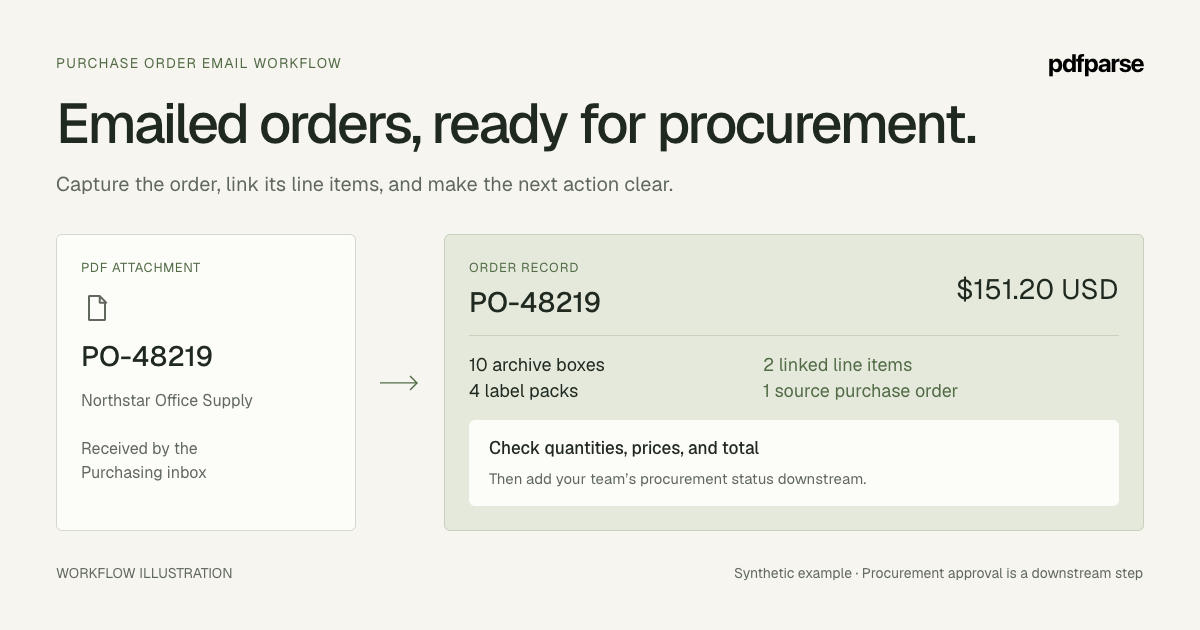
Our synthetic example is PO-48219, issued by Meridian Supply Group to Northstar Office Supply. It is dated September 9, 2026, with expected delivery on September 16, 2026.
| Ordered item | Quantity | Unit price | Line total |
|---|---|---|---|
| Archive boxes | 10 | 12.00 | 120.00 |
| Label packs | 4 | 5.00 | 20.00 |
The order's subtotal is 140.00, tax is 11.20, and total is 151.20 USD. These values define the expected result for this example, not a measured claim about extraction accuracy. For your own PDF, record its printed values before running the workflow.
Confirm that the file is the order itself. A supplier acknowledgment, quotation, invoice, or delivery notice may mention the same PO number while representing a different business event. Do not send every PDF in a purchasing thread into the same schema merely because the subject contains an order reference.
Separate the order header from ordered items
Create a purchase_orders table for values that occur once per order. Use these fields as a starting schema and adjust the extraction instructions to your documents.
| Field | Type | Extraction instruction |
|---|---|---|
purchase_order_number | text | Order identifier exactly as printed |
buyer_name | text | Organization placing the order |
supplier_name | text | Organization receiving the order |
order_date | date | Issue date of this purchase order |
expected_delivery_date | date | Requested or expected delivery date, if printed |
currency | text | Currency of the order amounts |
subtotal | number | Printed total before tax |
tax_amount | number | Printed tax amount |
total_amount | number | Printed final order total |
From that table, select Add array column, choose Child table, and create order_items. Add the fields below. Preserve the parent relationship that PdfParse creates so every item remains connected to its order.
| Field | Type | What it captures |
|---|---|---|
sku | text | Supplier item code when the document includes one |
description | text | Ordered product or service |
quantity | number | Ordered quantity, not a later delivered quantity |
unit_price | number | Price per ordered unit |
line_total | number | Printed extended amount for the item |
Save and review the schema. Keep identifiers as text, leave absent values empty where appropriate, and distinguish the buyer from the supplier in the prompts. If orders use units such as boxes, cases, and individual pieces, add a text field for the printed unit so a quantity of 10 retains its meaning.
The purchase-order parser describes the record structure. For a detailed explanation of repeating records, see JSON arrays versus child tables.
Test the PDF with this schema before adding email intake. The expected result is one order with two related items. If the fields are wrong, improve the schema or document routing first; a new intake address will not correct an ambiguous extraction instruction.
Give purchasing an inbox in the right project
One project can have several inboxes. If accounts payable already has an address in this project, create another for purchasing so you can manage its allowed senders and pause intake independently while retaining shared project records.
- Open the intended project and select Inboxes in the sidebar.
- Select Create inbox and enter
Purchasingas the Inbox name. Add your test sender under Sender access and select Create inbox to save it. - Select Copy address in the created inbox.
- Open Routing. Choose Use project classifiers for mixed documents or Send to purchase_orders for a source that sends only orders. Select Save settings after a change.
- Open Sender access. Under Allowed senders, choose Address for a specific sender or Domain for an exact domain, enter the value, select Add, then Save settings. An empty list blocks every sender.
- If the inbox is paused, select Resume before testing and confirm its status is Active.
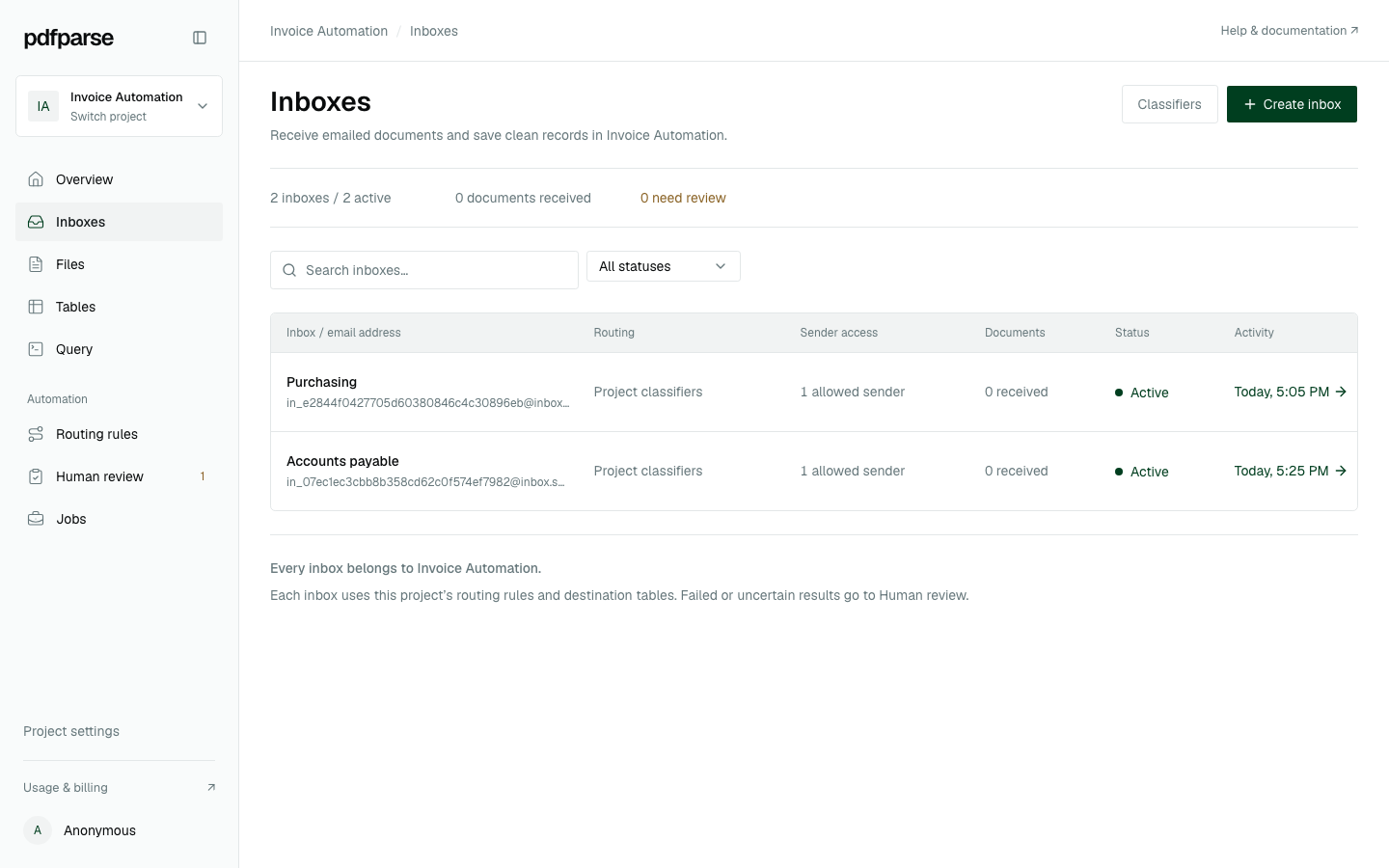
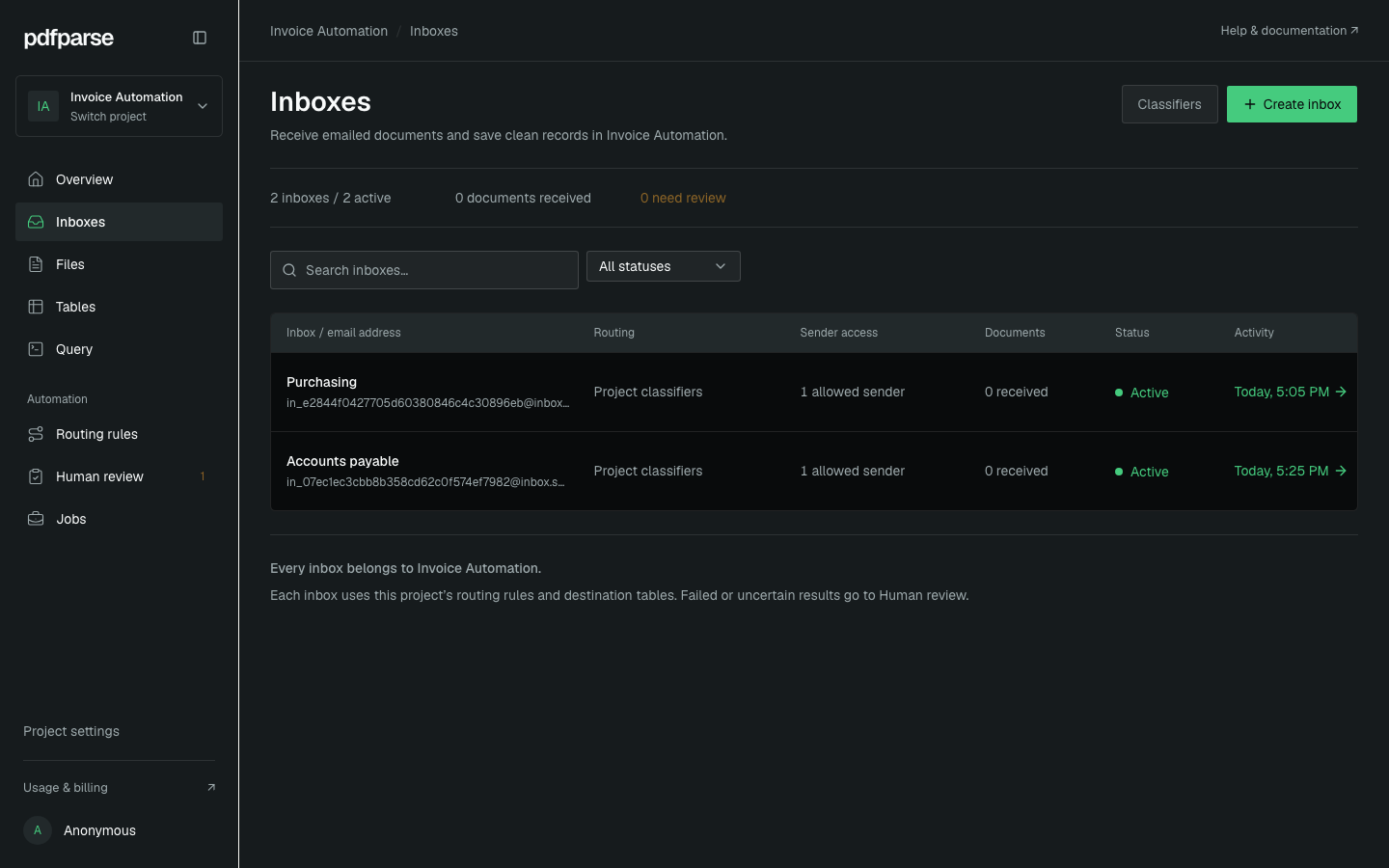
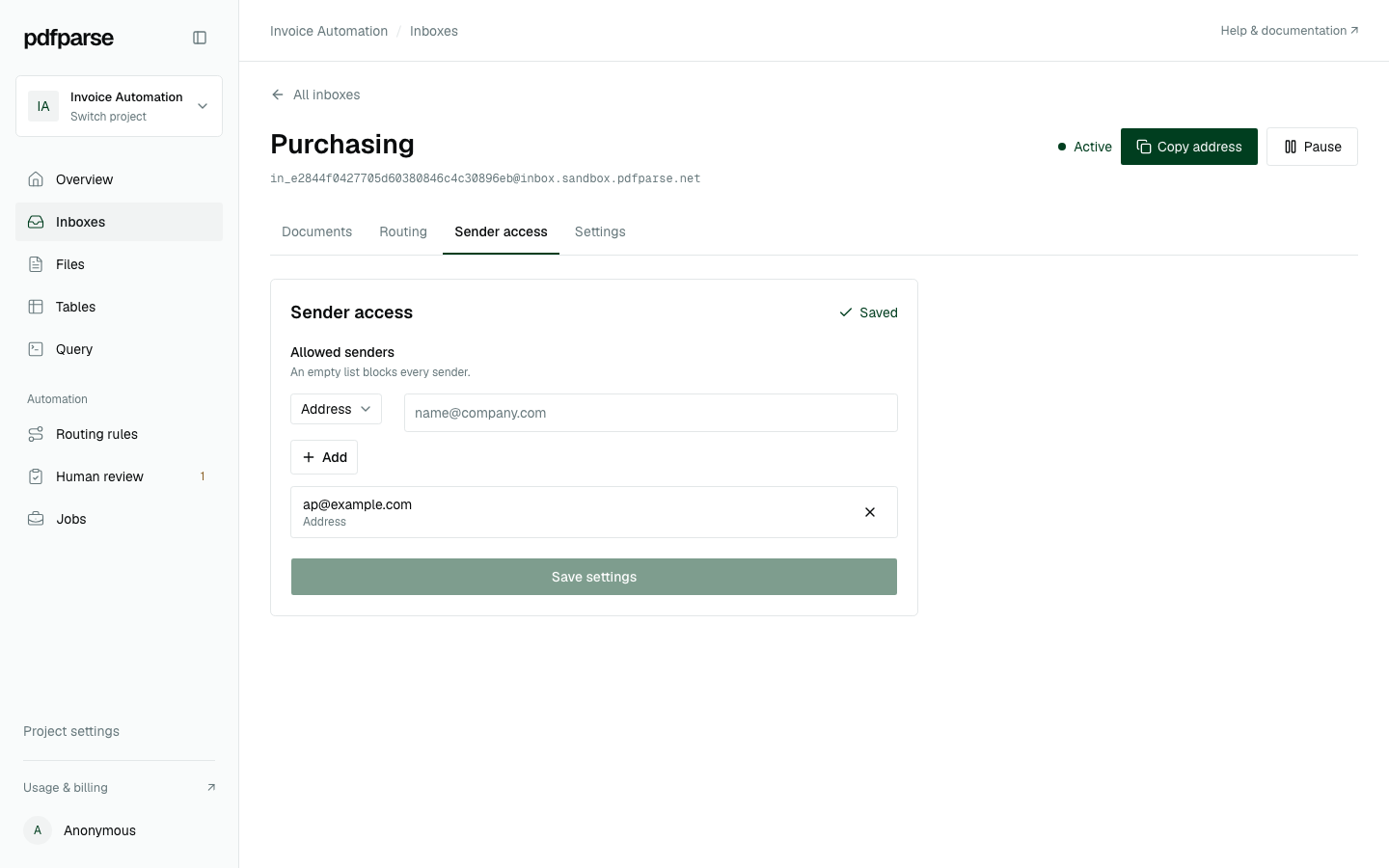
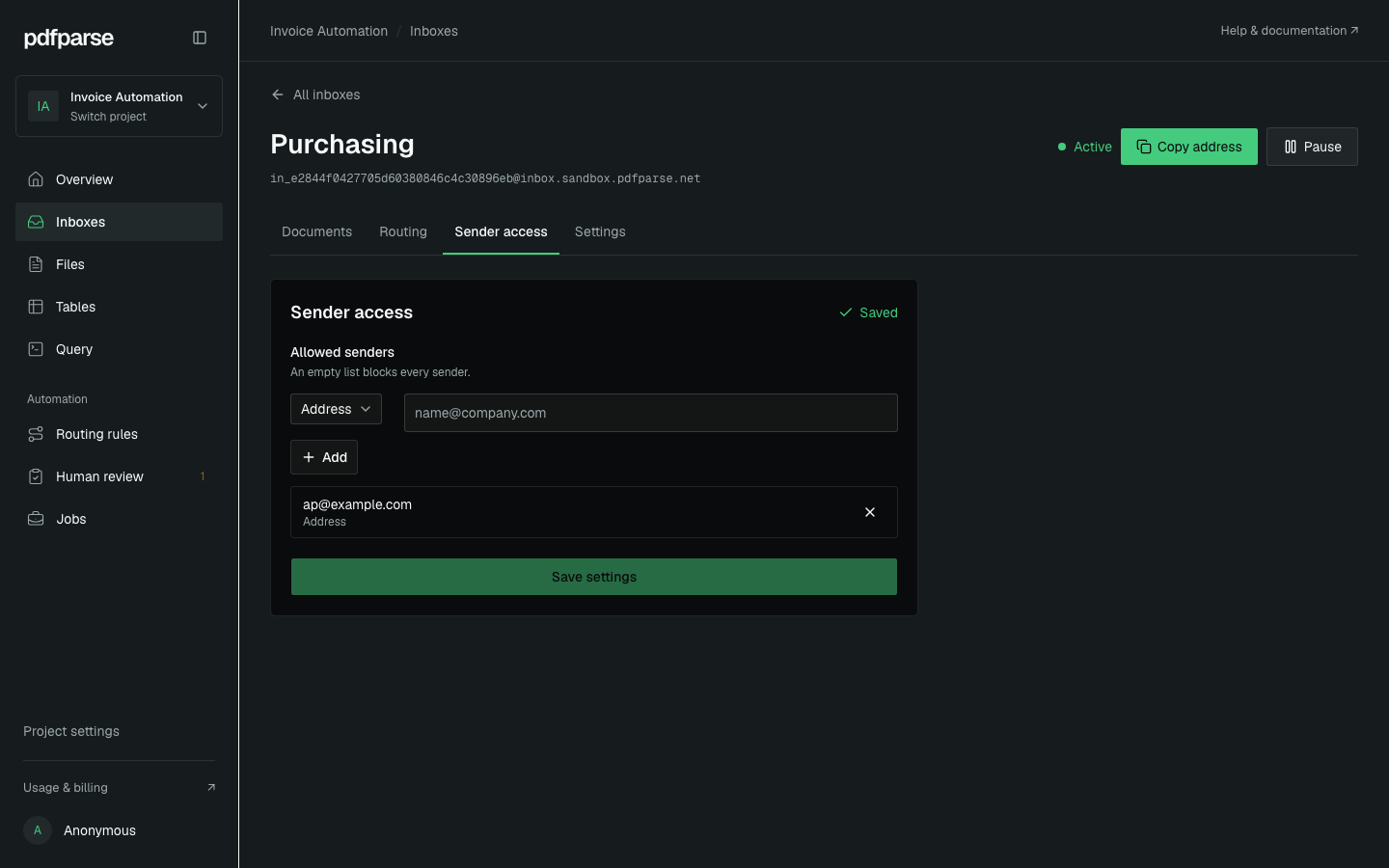
The screenshots show the current interface in Invoice Automation, the local sandbox project used for Meridian's example. Its disposable addresses demonstrate setup; zero received documents is not evidence of completed order extraction.
Check the project name and copied address before sending. The inbox name organizes your intake; it does not turn every attached PDF into a purchase order. Use classifiers when the source might also send invoices or shipping documents. A fixed table skips that classification choice.
Sender access is an envelope-sender filter: it checks the sender address supplied during email delivery, not cryptographic proof of identity. Keep the generated address private as a bearer secret and replace the inbox if it is exposed. Domain entries match the exact domain and do not include its subdomains.
For forwarded messages, test the actual shared-mailbox rule or forwarding method you plan to use. Inspect the received sender information before changing sender access to accommodate it. Avoid broadening intake simply because a test from a different account was rejected.
Send the attachment and inspect the document result
Send the PDF itself to the copied address. A portal link, shared-drive link, or message body with an order number is not a PDF attachment and will not supply the document for this workflow.
Open Documents in the inbox and locate your test. Check the filename and attachment outcome, then follow the accepted document into routing and extraction.
An email arriving is the first checkpoint. The next is whether the intended PDF reached purchase_orders and completed processing. If the document needs routing review, inspect it and resolve the destination before expecting an order row.
When a message has several PDFs, check each attachment. For example, an order and a supplier acknowledgment should not be treated as interchangeable input. A rejected attachment also does not mean that every other attachment failed.
If the message is absent, check the destination address, the sender's delivery result, the inbox pause setting, and sender access. Exhausted page tokens or storage can automatically pause intake; resolve the account limit before retrying. If the document exists but processing failed, inspect its error before resending. Resolve an unreadable or protected file through the appropriate document workflow instead of repeatedly forwarding the same input.
Verify the header, items, and arithmetic
After processing, open the purchase_orders table and find the row using both order number and buyer. Open its source PDF beside the records and check:
purchase_order_numberisPO-48219for the example.buyer_nameisMeridian Supply Groupandsupplier_nameisNorthstar Office Supply.- The order date and expected delivery date match the printed dates.
- Currency is
USD, subtotal is140.00, tax is11.20, and total is151.20.
Then open order_items. The archive boxes should have quantity 10, price 12.00, and line total 120.00. The label packs should have quantity 4, price 5.00, and line total 20.00. Both rows must point to the same parent order.
The example reconciles as 10 × 12.00 + 4 × 5.00 = 140.00, followed by 140.00 + 11.20 = 151.20. Check the equivalent arithmetic for your source document. If freight, discounts, deposits, or tax-inclusive prices change the calculation, model those fields explicitly.
These checks confirm that the extracted records represent the PDF. They do not confirm that the order was approved, goods were received, or an invoice matches the purchase order. Those remain separate business events and downstream checks.
Decide how to handle repeat mail and revised orders
PdfParse's duplicate-delivery protection prevents recognized retries of the same incoming delivery from starting the same work repeatedly. It does not establish whether a newly emailed PDF is the current commercial version of an order.
A revised PO-48219 might change a quantity or delivery date. A supplier might also resend the original unchanged. Keep your downstream revision policy explicit: identify the buyer and order number, compare the document, and preserve the information needed to decide which version should be used.
Do not treat the order number alone as a universal unique identifier across unrelated buyers. Likewise, do not overwrite an earlier business record merely because the new attachment has the same filename. Source review matters most when two otherwise similar documents disagree.
If invoice matching is your next step, keep it separate from intake. Our invoice extraction guide explains the invoice records that can support that comparison, while extracting PDF data into SQL tables covers the wider relational approach.
Introduce forwarding with a small reviewed batch
Once the first order passes the checks, configure a narrow forwarding rule in your email provider for the relevant mailbox or source. Send another representative order through that rule and verify it arrived with the expected sender and attachment.
PdfParse receives the mail addressed to the inbox. It does not sign in to Gmail or Outlook or synchronize an existing mailbox. Keep provider-specific forwarding configuration in the email service and project extraction configuration in PdfParse.
Use Pause if unexpected documents arrive while you adjust the rule or sender controls, then Resume when intake is ready. Paused inboxes reject new deliveries and let already accepted work finish. Check the sender's delivery outcome before intentionally resending any message sent during the pause.
Hand off a reviewed order with its items
The result is one order record, its related item rows, and a source PDF you can inspect. Before exporting, check the buyer, order number, revision context, currency, totals, and parent relationships one final time.
Export the necessary tables as CSV or JSON, or use the project's SQLite output for related data and queries. Keep relationship identifiers so the receiving tool can reconnect the order and its items. The getting started documentation covers the broader project workflow.
Your next step is to create a purchasing inbox in your project and verify one order end to end. The email PDF parser overview explains the intake options when you are ready to add more sources.