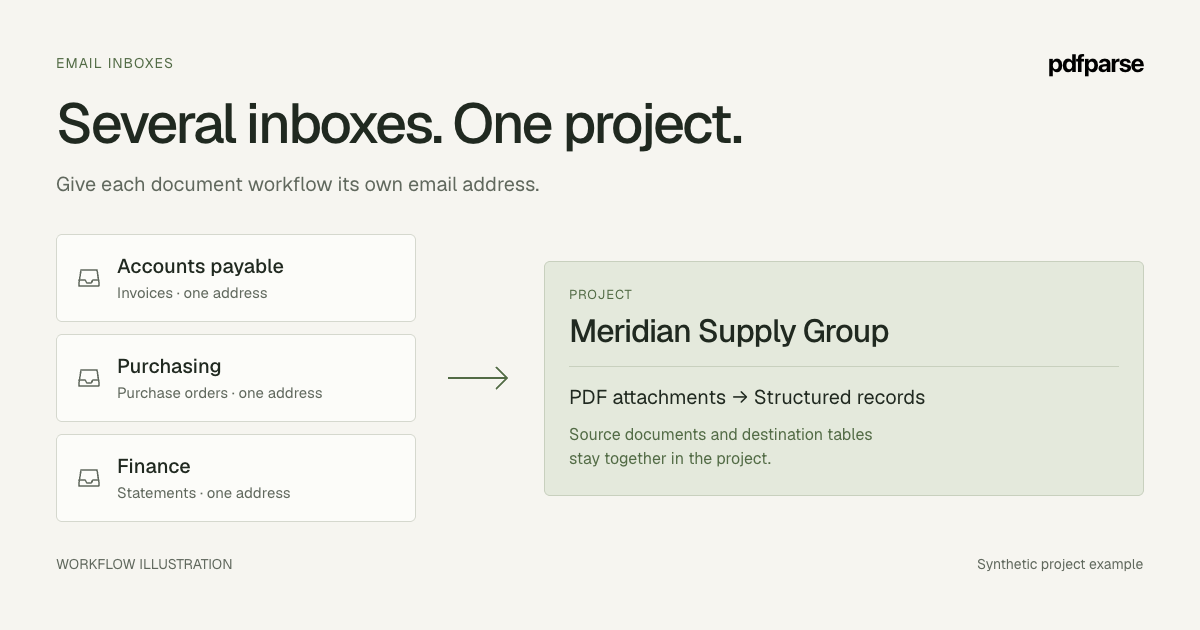
An invoice arrives in accounts payable. A purchase order arrives in purchasing. Both belong in the same set of business records, but getting there often means downloading an attachment, finding the right project, and uploading the file again.
PdfParse email inboxes bring that first step into the project. Send or forward an email with a PDF attachment to an inbox address, and an accepted attachment enters the project's document workflow. An inbox can use the project's classifiers to choose a destination or send PDFs directly to one table for extraction.
A project can have several inboxes. Different teams and sources can have their own intake addresses while working with the same project tables.
Give each source a useful address
Consider Meridian Supply Group, a fictional business receiving invoices and purchase orders from suppliers. It needs one project for the records used by its operations team, with separate addresses for accounts payable and purchasing.
| Inbox purpose | What arrives | Records the team needs |
|---|---|---|
| Accounts payable | Supplier invoice PDFs | Invoice headers and related line items |
| Purchasing | Purchase-order PDFs | Order headers and related ordered items |
These addresses are entry points into the project. They do not create separate databases or decide a document's type merely from its subject line. With Use project classifiers, the project's routing rules determine the destination. A fixed table sends every accepted PDF directly to that table, so reserve it for a source that supplies the same document type.
This distinction matters when a supplier includes both an invoice and a purchase order in one message. Receiving a message is one event; handling its individual attachments and extracting their records involves additional work. Check the attachment results instead of assuming every file followed the same path.
Create another inbox when a source needs its own sender controls or pause setting. Create another project when the records and access belong in a different workspace. An address is a useful intake boundary, but it does not replace your choice of project.
Keep the structure you already defined
An inbox changes how a PDF reaches PdfParse. Your table definitions still describe the information you want from it.
For Meridian's sample invoice, INV-2026-1048, the useful result is one invoice record linked to two line items. The following values are a synthetic example of the intended output, not a measured extraction result.
| Invoice field | Example value |
|---|---|
vendor_name | Northstar Office Supply |
invoice_number | INV-2026-1048 |
purchase_order_number | PO-48219 |
currency | USD |
subtotal | 140.00 |
tax_amount | 11.20 |
total_amount | 151.20 |
The parent record supplies the document context. Its child table holds each charge:
description | quantity | unit_price | amount |
|---|---|---|---|
| Archive boxes | 10 | 12.00 | 120.00 |
| Label packs | 4 | 5.00 | 20.00 |
The relationship between these tables lets a person inspect the invoice and its charges together. It also lets downstream software use the data without treating every attachment as an unstructured block of text.
For your own invoice table, use text for identifiers and currency, date fields for dates, and number fields for quantities and amounts. Add a child table for repeating line items. The invoice schema tutorial walks through those choices; JSON arrays versus child tables explains when a different representation is useful.
Control who can send and when an inbox runs
Each inbox has sender controls and a pause setting. In Sender access, use Address under Allowed senders for a specific email address, or Domain for all senders at an exact domain. Enter the value, select Add, then Save settings. An empty list blocks every sender; a domain entry does not automatically include its subdomains.
Sender access checks the envelope sender—the address supplied during email delivery. It is a filter, not cryptographic identity verification. Treat the generated inbox address as a bearer secret too: keep it private, and replace the inbox if the address is exposed. Continue reviewing documents and business records before acting on them.
Forwarding needs a small test of its own. Depending on the forwarding method, the sender associated with the received message may be the forwarding account. Inspect the actual result before allowing a wider set of senders to work around a rejection.
Use Pause when you need to stop intake through that address, such as while correcting a forwarding rule or reviewing unexpected mail. Resume makes the address available again. A paused inbox rejects new deliveries; it does not hold mail for replay. Check the sender's delivery outcome and resend intentionally when needed.
Pausing intake is also different from cancelling a processing job. PDFs already accepted into the document workflow may have progressed beyond receipt. Follow their document and job status when you need to know what has completed.
See where an attachment stands
The inbox provides visibility into received messages and their attachments. Follow an accepted PDF into the project's document workflow to inspect its routing and processing result.
There are three questions to answer before using the data:
- Did the intended inbox accept the message and its PDF attachment?
- Did the document reach the correct extraction table and finish processing?
- Do the resulting rows match the source PDF?
A successful first answer does not guarantee the next two. A message can arrive while an attachment is unsupported, a document needs routing review, or extraction fails. The normal project review flow still matters.
For Meridian's example, the final check is concrete: two item rows total 140.00; tax is 11.20; the invoice total is 151.20 USD; and both items point to the same invoice. A completion state establishes that processing finished. Comparing these values with the source establishes whether the record is ready for its next use.
Understand what duplicate protection covers
Email infrastructure can deliver the same message again after a retry. Intake uses idempotency, meaning the same recognized delivery should not start the same work repeatedly.
That is different from detecting every duplicate invoice. A supplier might send the same invoice in a new message, send a corrected PDF, or submit through two different inboxes. Treat vendor identity, invoice number, and document revisions as business checks in your downstream process. Do not assume a matching total or filename makes two documents interchangeable.
Start with one PDF and check the result
Use a project with tables and routing already tested on a representative PDF. If you are starting from scratch, follow the project setup guide first.
- Open the project and select Inboxes in its sidebar.
- Select Create inbox, enter an Inbox name, add the intended sender under Sender access, and choose the document routing. Select Create inbox to save it.
- Select Copy address in the created inbox. Review Routing and Sender access, saving any changes with Save settings, before distributing the address.
- Send one email containing the test PDF as an attachment.
- Open Documents, inspect the received attachment, and follow its document and extraction result into the project tables.
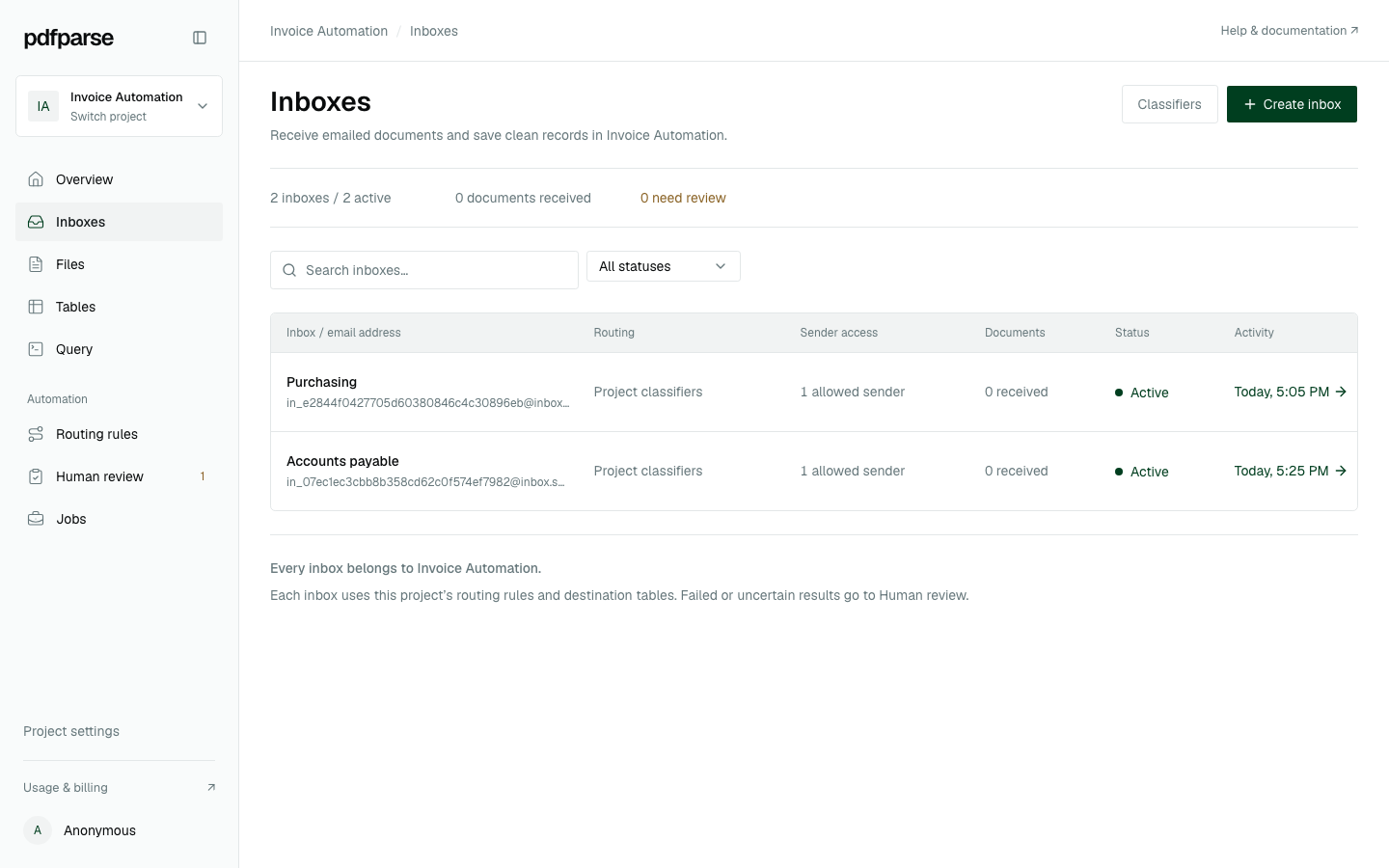
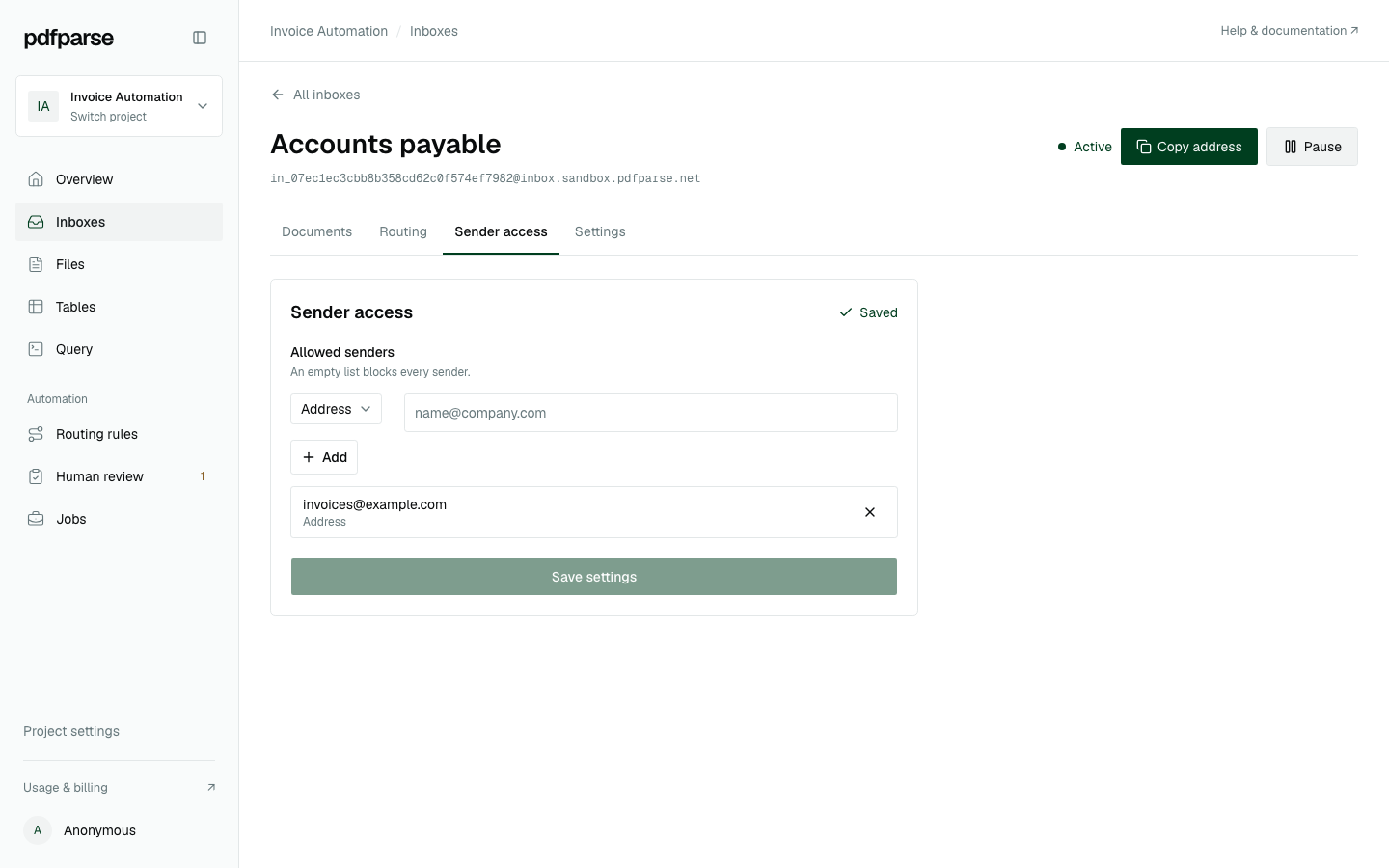
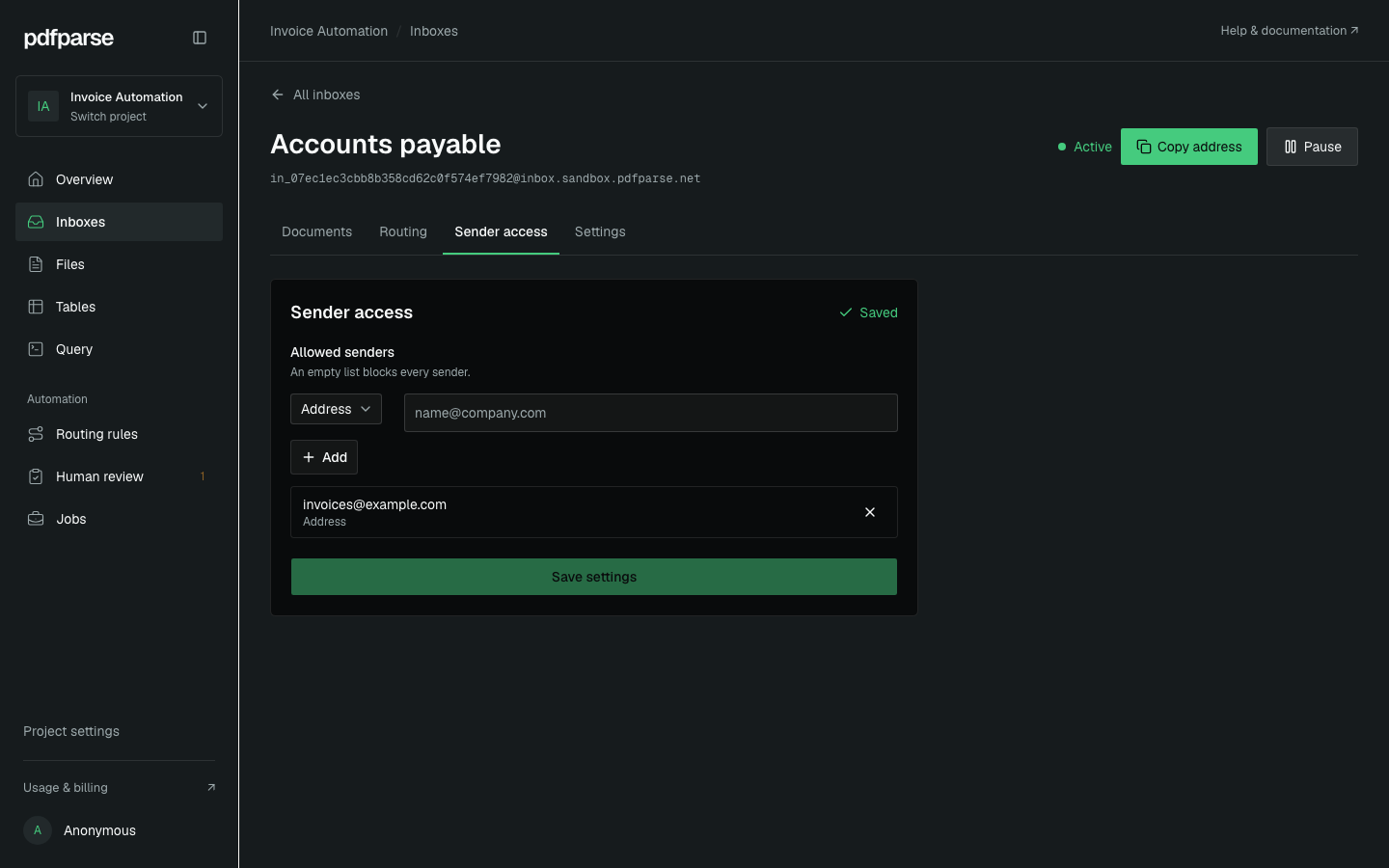
The screenshots show the current interface in a local sandbox project named Invoice Automation, representing Meridian's shared project. The addresses are disposable demonstration data; create and copy your own inbox address.
Check the resulting rows against the original PDF before creating a recurring forwarding rule. If the message is absent, check the address, forwarding rule, sender controls, and whether the inbox is paused. If the attachment appears but no records are ready, investigate its document and job status before resending it.
Email intake also requires an active subscription with available page tokens and storage. Exhausted capacity can automatically pause an inbox. Resolve the account limit and check its status before retrying a delivery.
Inboxes handle attached PDFs. They do not sign in to Gmail or Outlook, synchronize historical mail, turn message bodies into PDFs, or fetch a supplier portal's download link. Forward the actual file you want extracted. Cloudflare Email Routing supplies the receiving infrastructure behind the feature; the customer workflow stays inside the PdfParse project.
Your result is a repeatable intake path into the records you already use. Set up your project inboxes, then run one representative document through the complete receipt, extraction, and source-review check. The email PDF parser overview covers the available workflow, and the invoice parser explains the resulting business records.