Automatic routing removes repetitive sorting from a document workflow, but it should not force a decision when the evidence is weak. An invoice might resemble a receipt, an unfamiliar report might match no rule, or a document might fail after it reaches the correct table.
PdfParse sends those exceptions to Human review. A reviewer can see why a PDF was held, compare the suggested route with the source document, choose the right destination table, and start extraction. Failed extractions appear in the same queue so they are not mistaken for completed work.
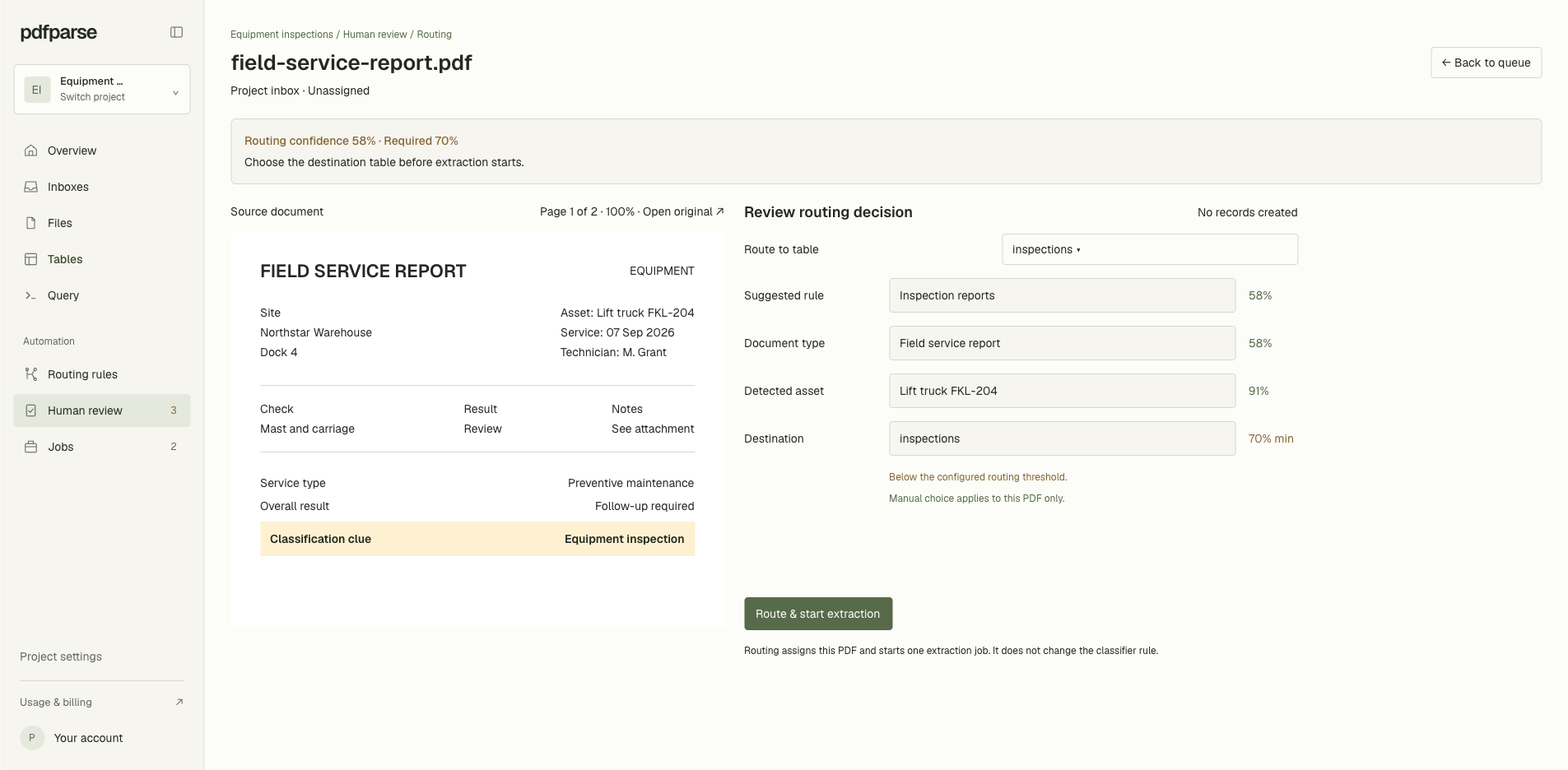
This walkthrough uses a synthetic field-service report that was suggested for an
inspections table with 58% confidence. The project requires 70%, so PdfParse
holds the PDF for a person to decide. By the end, you will know how to resolve
that routing decision and how to confirm that it has left the review queue.
Set a confidence threshold that creates a useful review queue
A routing rule describes which PDFs belong in a destination table. It also has a minimum confidence threshold. A document that matches at or above the threshold can continue automatically; a weaker match waits for review.
Before processing a large batch:
- Open the project and select Routing rules.
- Create or edit the rule for the document type.
- Choose its Destination table.
- Describe the documents the rule should match under Matching documents.
- Set Minimum confidence, then keep Automatic routing enabled.
The available threshold is 60% to 100%, and a new rule starts at 70%. The right number depends on the cost of a wrong route. A higher threshold sends more PDFs to Human Review; a lower threshold permits more automatic decisions.
Use the table schema and routing description to separate similar document types. For example, an inspection rule can mention an asset, inspection date, technician, result, and findings. It should not rely on a broad word such as “report,” which can appear in many unrelated PDFs.
The threshold is a review boundary, not an accuracy guarantee. It decides when the system should ask a person for help.
Read the Human Review queue before opening a document
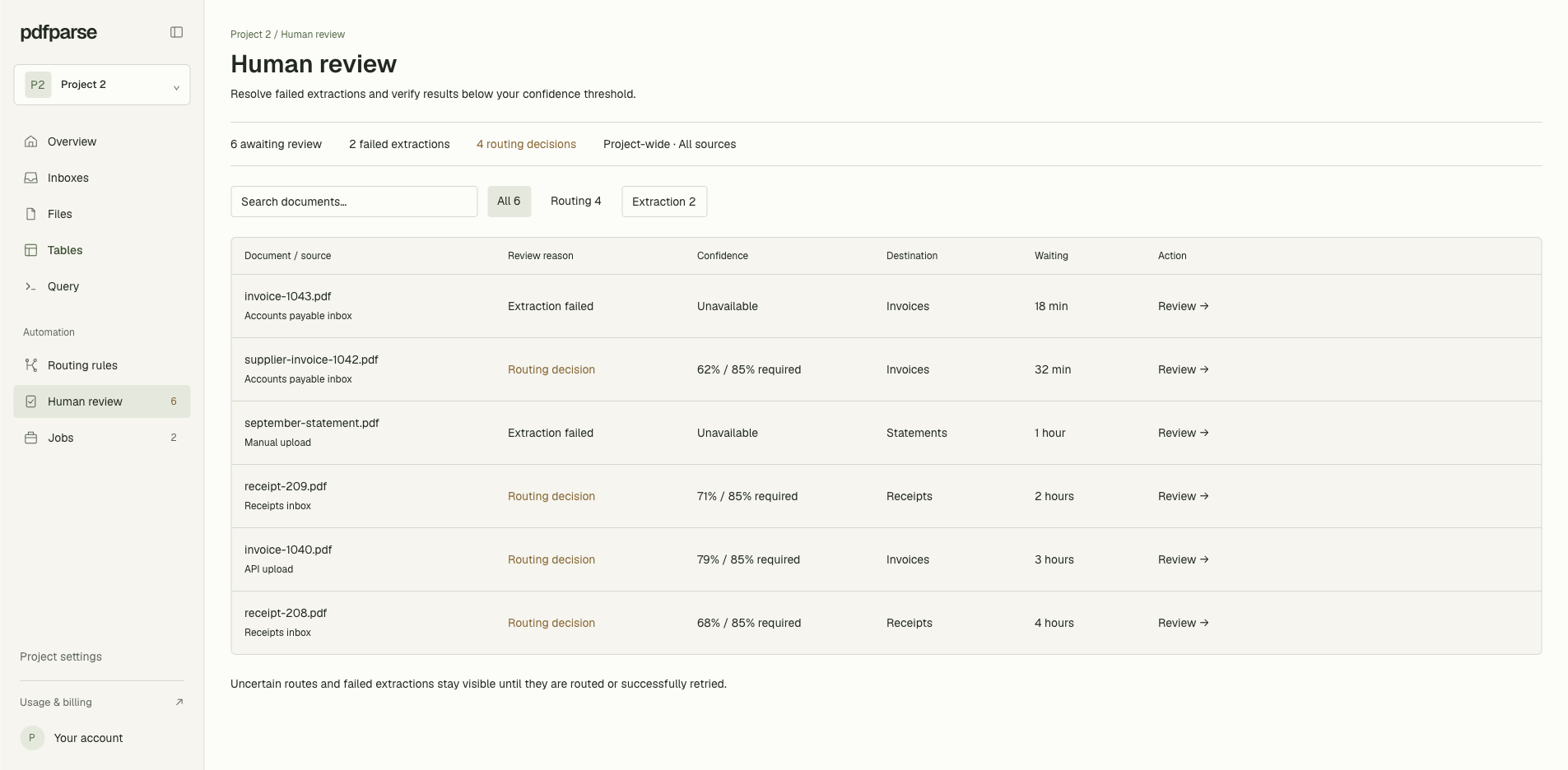
Open Human review from the project navigation. The summary separates the work into Routing decisions and Extraction failures, while Total waiting shows the combined backlog.
Use the type controls to focus on one kind of exception. Search accepts a document name or routing-rule name, which is useful when the queue contains several suppliers or document types.
For every row, check these details before opening it:
- Review reason tells you whether a person must choose a route or investigate a failed extraction.
- Confidence compares a routing suggestion with the configured threshold.
- Destination shows the proposed or previously selected table.
- Waiting shows how long the exception has remained unresolved.
This distinction matters. A Routing decision has not started extraction, so the reviewer's job is to select a destination. An Extraction failed item has already reached processing and needs investigation in the Files workspace.
Nothing in the queue should be treated as completed data. The queue is the boundary that prevents an uncertain decision or failed job from quietly appearing downstream as a successful result.
Compare the suggested route with the source PDF
Select Review route for the field-service report. The review panel places the source PDF beside the proposed decision, so the reviewer does not have to switch between a file viewer and a separate settings screen.
Review the evidence in this order:
- Confirm the filename and visible document type in the PDF preview.
- Read Suggested route and its confidence score.
- Read Why it needs review. PdfParse states whether the match fell below the rule's threshold or no enabled rule matched.
- If classification reasoning is available, compare it with the actual content of the PDF.
- Check that the suggested destination table represents the records this PDF should create.
The synthetic report identifies an asset, a service date, a technician, an
overall result, and component findings. Those details support the inspections
destination even though the 58% routing score is below the required 70%.
Do not approve a route from the rule name alone. Read enough of the source to distinguish documents that share visual language. A supplier invoice and a purchase order can contain the same vendor, line items, totals, and addresses, but they should not necessarily populate the same table.
Reconcile the suggestion with the destination schema
Routing review is a reconciliation step: compare what the document contains, what the routing rule suggests, and what the destination table is designed to store.
Ask three questions:
- Does the document belong to this business process? The field-service report records an inspection event, rather than a quote or general memo.
- Can the destination schema represent its important information? The
inspectionstable is meant to hold the asset, date, technician, status, and related findings visible in the PDF. - Would another table be a clearer fit? If the project also has a generic
reportstable, the more specificinspectionstable is preferable when its schema matches the document.
This review validates the route before extraction. It does not certify every value that extraction will later produce. After the PDF is processed, important records should still be compared with their source document, especially when they affect billing, compliance, or another high-consequence workflow.
Route this PDF and start extraction
Choose the correct Destination table, then select Route and start extraction. PdfParse records the manual classification for this PDF and starts its extraction job against the chosen table.
The decision applies only to the current PDF. It does not silently change the routing rule for future uploads. That separation is useful when the document is an unusual exception rather than evidence that the rule itself is wrong.
After the action succeeds, PdfParse reports that the document was routed and that extraction started. The review panel closes, and the document no longer appears as an unresolved routing decision.
Verify the result in two places:
- Return to Human review and confirm that the routing count decreased.
- Open Files and confirm that the PDF entered processing for the selected table.
If the action cannot start extraction, the document remains available for review. Read the error, confirm the destination still exists, and try again after resolving the reported problem.
Resolve extraction failures without confusing them with routing work
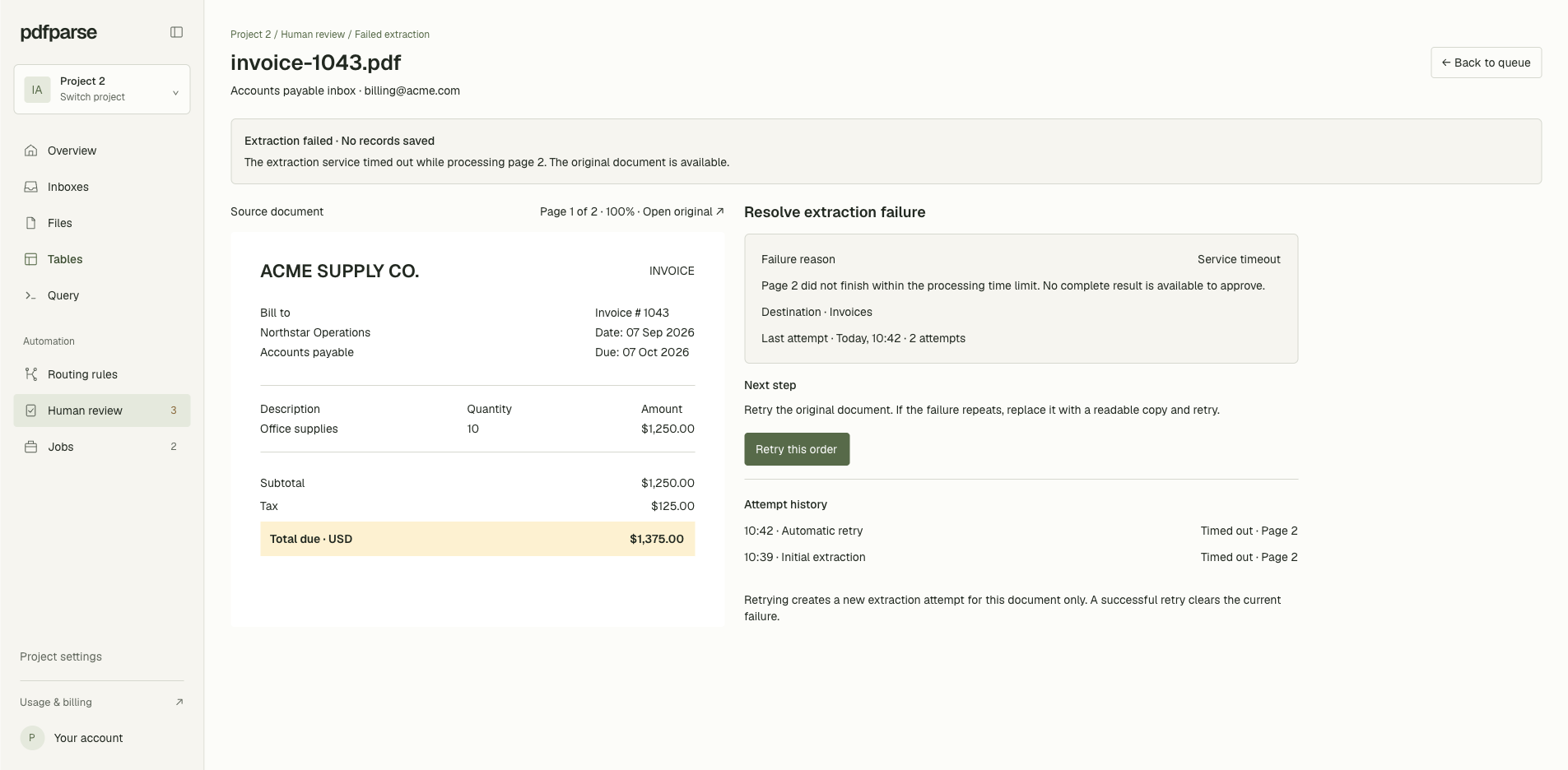
Human Review also surfaces documents whose extraction status is failed. These rows use Extraction failed as the reason and provide Review failure.
Open Review failure to keep the source PDF, failure reason, destination, and attempt history together. Check that the PDF is readable, that the selected table still has the expected schema, and that the file was routed to the intended destination.
Select Retry this order to start a new extraction for only that document. The action does not reprocess the rest of the upload or batch. When the retry starts, PdfParse returns to the refreshed review queue. If processing succeeds, the old failed attempt no longer appears as the document's current failure.
A routing decision and an extraction failure answer different questions:
| Review reason | Question to answer | Successful outcome |
|---|---|---|
| Routing decision | Which table should receive this PDF? | The PDF is routed and extraction starts |
| Extraction failed | Why did processing not complete? | The issue is resolved and processing can complete |
Keeping both exceptions visible in one place gives the team a complete view of documents that still need attention, without pretending they share the same fix.
Improve the rule only when the exception reveals a pattern
One manual decision should not automatically rewrite a routing rule. A strange cover page, a new supplier layout, or a low-quality scan can create a one-off exception.
Update the rule when several reviewed documents reveal the same gap. Add the specific evidence that distinguishes the intended type, confirm the destination table, and reconsider the threshold only after reviewing the consequences.
For example, if genuine inspection reports repeatedly fall below 70% because they use “service record” instead of “inspection report,” improve the matching description with the shared business fields. Lowering the threshold may reduce the queue, but it can also allow genuinely ambiguous PDFs to proceed without a person checking them.
Know when the routing review is complete
The field-service report is resolved when it no longer appears under Routing
decisions, it is processing against inspections, and the chosen destination
matches the source PDF's purpose and the table schema.
Repeat that check for every held document. When Human Review says Nothing needs review, there are no uncertain routes or failed extractions currently waiting in that project.
Human Review is most useful as a narrow exception lane. Clear routing rules handle familiar documents automatically; the queue preserves human judgment for the cases where the system does not have enough evidence to act safely.
To build the related table structure, follow How to Extract PDF Data into SQL Tables. To understand why the source PDF must remain connected to structured records, read Is Basic OCR Enough for Invoice Parsing?. When you are ready to test the workflow with your own documents, create a PdfParse project.