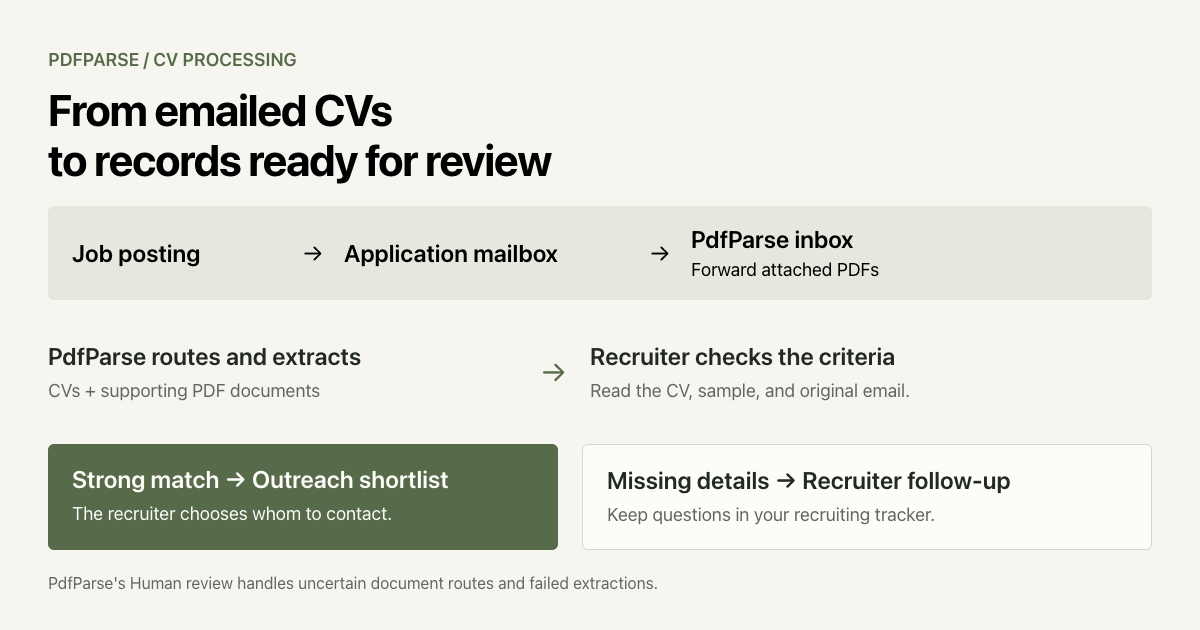
You publish a job opening and ask candidates to email their CVs. Before long, your inbox is filled with applications. Many do not match the job description, and some are generated and submitted using AI tools. Finding suitable candidates means reviewing each application manually, so you start looking for a way to automate the repetitive work.
An automated CV processing pipeline gives you a consistent place to start that review. Incoming CVs and supporting PDFs are sent to the appropriate tables, where PdfParse extracts the information you want to keep. Your team can then check those records against the job description and decide which candidates to contact.
This tutorial walks through building that pipeline with PdfParse, without needing to be a software developer. You'll use managed inboxes to receive PDF attachments, routing rules to direct each document to its table, and relational tables to keep a CV's employment entries connected to the candidate record. We'll go from the first forwarded application to records you can use in your recruiting review.
1. Start with the job description
Let's start with the role we're hiring for. Our fictional company, Meridian Software, needs a Technical Support Engineer who can handle customer tickets, investigate API problems, and write clear troubleshooting instructions. The role covers the 14:00–22:00 UTC support shift, Monday through Friday.
We ask candidates to send their CV, a short troubleshooting writing sample, and an introductory email to help@meridiansoftware.example.com. They should include the job reference, SUPPORT-2026-09, in the subject line and confirm their availability in the message.
That gives us a straightforward set of requirements to screen against:
| Requirement | What we're looking for |
|---|---|
| Customer ticket support | Experience investigating and resolving customer tickets |
| API troubleshooting | Examples involving requests, responses, logs, or reproduction steps |
| Written guidance | A troubleshooting sample that a customer could follow |
| Advertised shift | Explicit confirmation of availability for the published hours |
For this example, the recruiter checks all four requirements before adding a candidate to the outreach shortlist. If something needs clarification, they record the question in their recruiting tracker and follow up with the applicant.
Before setting anything up, read the job description alongside this list. The criteria should reflect the work the person will do, and each one should be clear enough for another recruiter to apply consistently.
The company and email address are synthetic. Use your own application mailbox when following the setup.
Keep the original application email in that mailbox. PdfParse processes the attached PDFs; the recruiter reads the message there to check availability and any follow-up answers.
2. Prepare the project tables
We'll use a project called Meridian Software hiring. If you haven't created yours yet, follow the project setup guide to create the project and define the fields you want to extract from a sample CV.
You'll also need an active subscription with available page tokens and storage to receive emails through a PdfParse inbox.
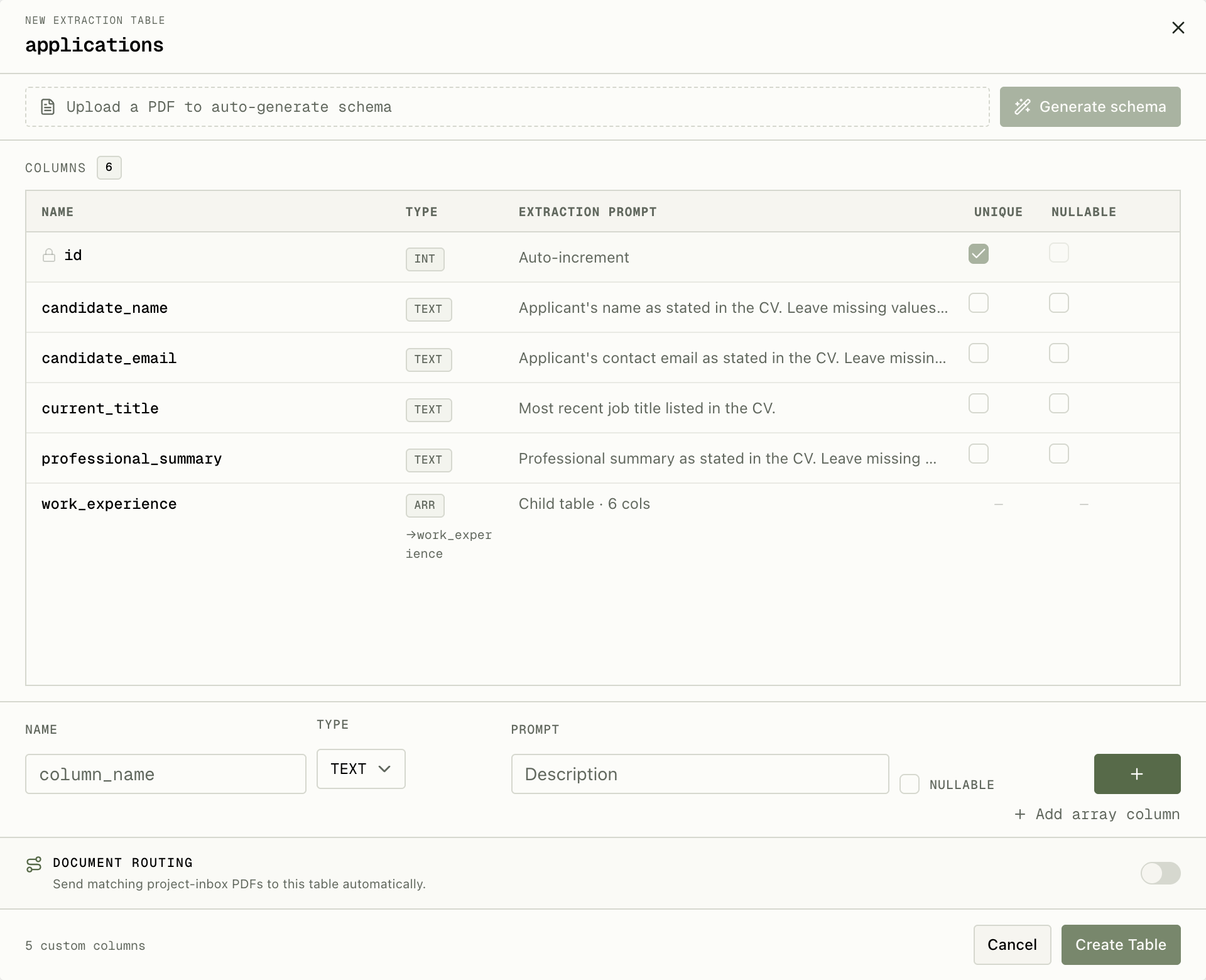
For this walkthrough, use applications for the candidate's name, contact email, current title, and professional summary. Keep employment entries in a related work_experience table, and use application_documents for the writing sample's candidate name, title, and summary.
We'll use Alex Morgan's sample CV and troubleshooting guide as our example. Both PDFs contain synthetic data. Check that each document type has a destination before creating the inbox.
3. Create the inbox and allow the forwarding sender
With the tables in place, we can create an inbox for the role. Candidates will send applications to our company mailbox, and we'll forward those messages to the address PdfParse generates.
- Open the project's Inboxes page and select Create inbox.
- Set Inbox name to
Technical Support Engineer applications. - Under Sender access, select Email address and enter
help@meridiansoftware.example.com, the mailbox we're forwarding from in this example. - Select Add sender and check that the address appears in the allowed-sender list.
- Under Document routing, choose Use project classifiers.
- Select Create inbox, then copy the generated address for the forwarding setup.
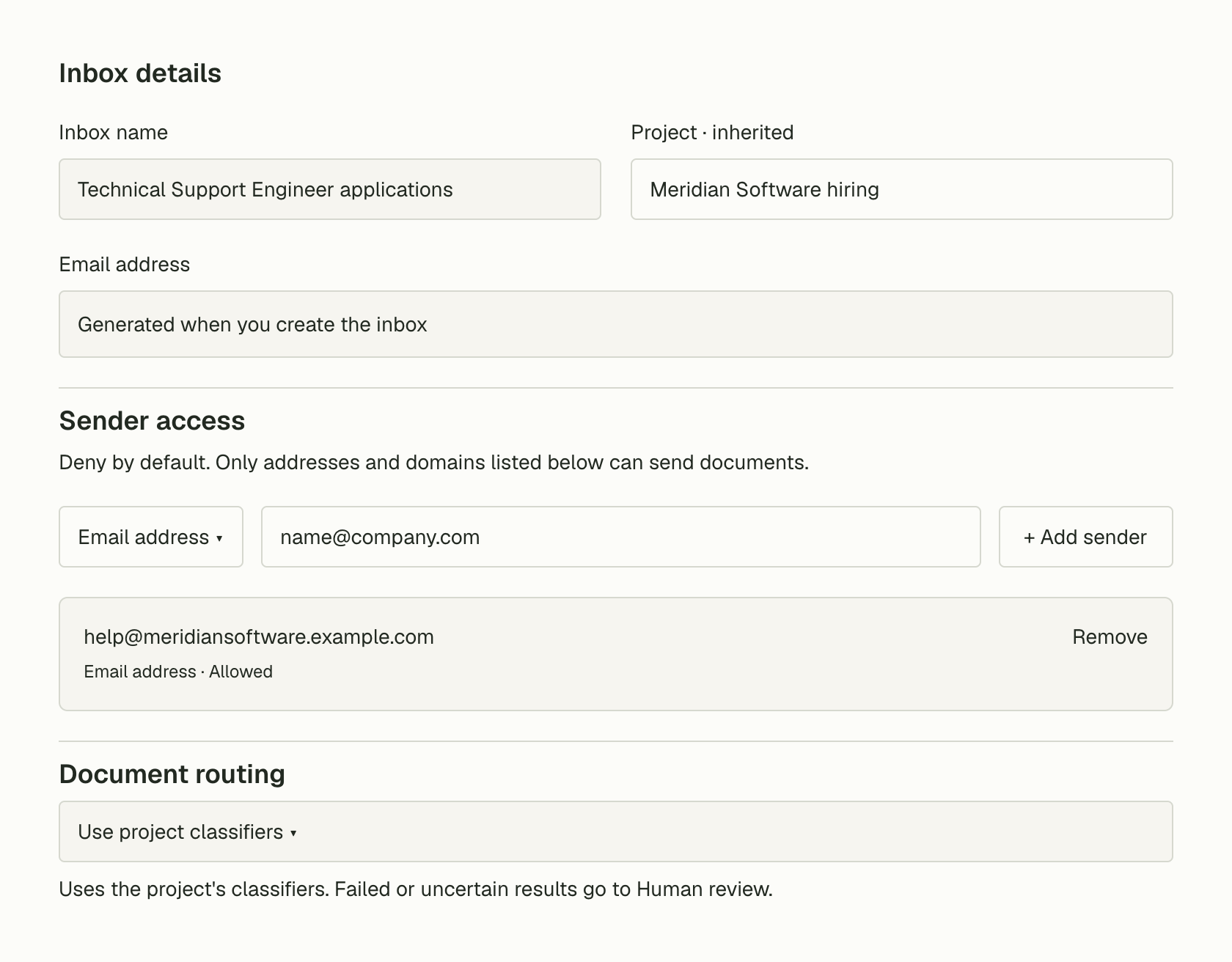
Pay attention to the allowed-sender list. PdfParse rejects mail from senders that aren't allowed, and an empty list blocks all senders. Entering the address in the field isn't enough: use Add sender before creating the inbox.
Forwarding methods can change the delivery sender that PdfParse checks. Our example assumes it is the company mailbox; verify that with the first forwarded message. If the message is rejected, inspect the delivery result and the actual sender before changing the list.
The result should be a named inbox with the forwarding sender allowed and project classifiers selected. We'll set up those classifiers next, before sending the test application.
4. Tell PdfParse where each document belongs
An application can contain more than one kind of PDF. We want the CV to populate applications and its employment rows, while the writing sample goes to application_documents.
Open the project's Routing rules page and create a rule for each destination. In the rule editor:
- Give the rule a descriptive name.
- Choose the destination table.
- Describe the documents the classifier should match.
- Enable automatic routing, review the minimum confidence, and save the rule.
Use these matching descriptions as a starting point:
| Rule | Destination | Matching documents |
|---|---|---|
| Candidate CVs | applications | CVs or resumes describing an applicant's professional history, job titles, employers, and responsibilities. |
| Troubleshooting writing samples | application_documents | Troubleshooting guides submitted as writing samples, with instructions for investigating or resolving a technical problem. |
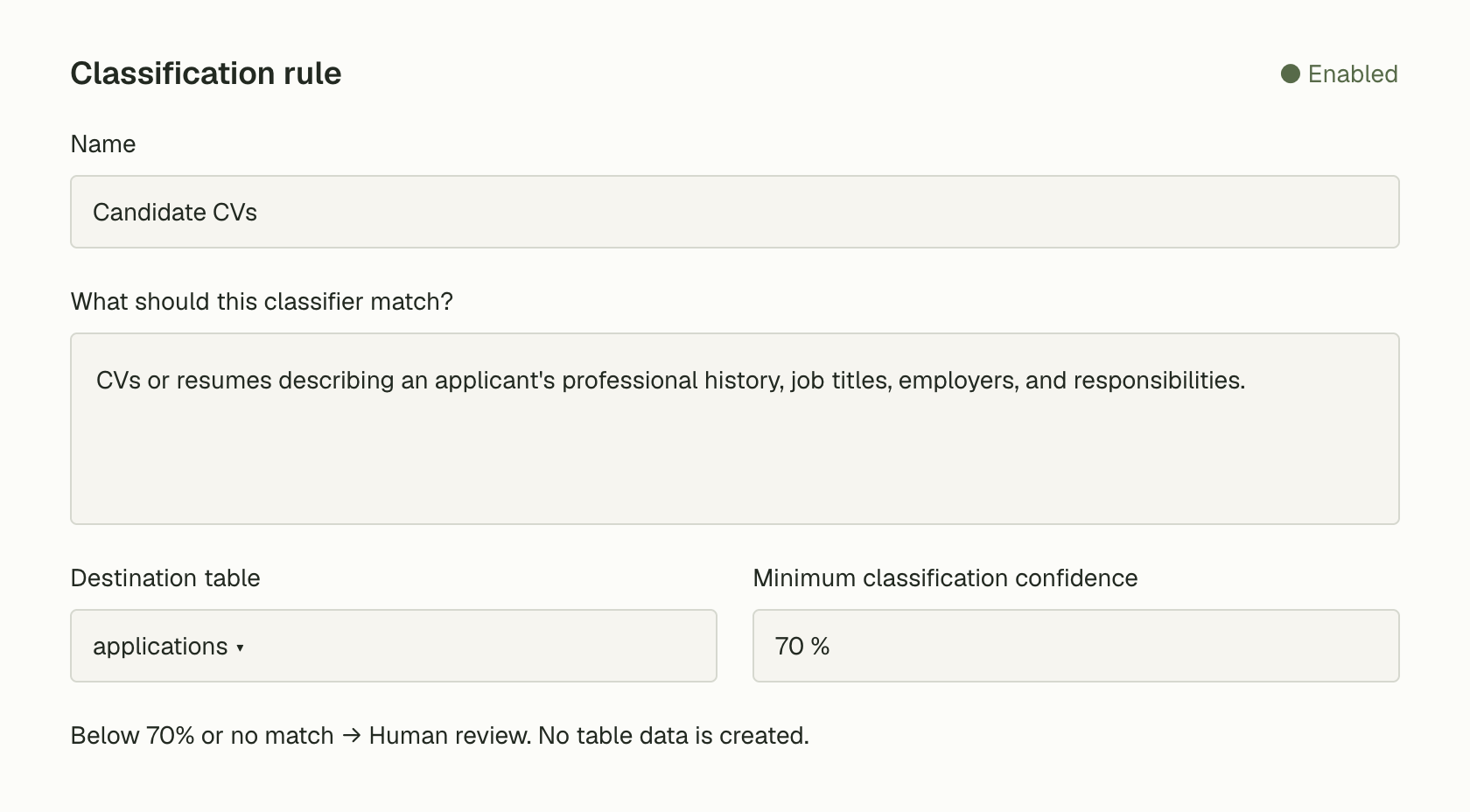
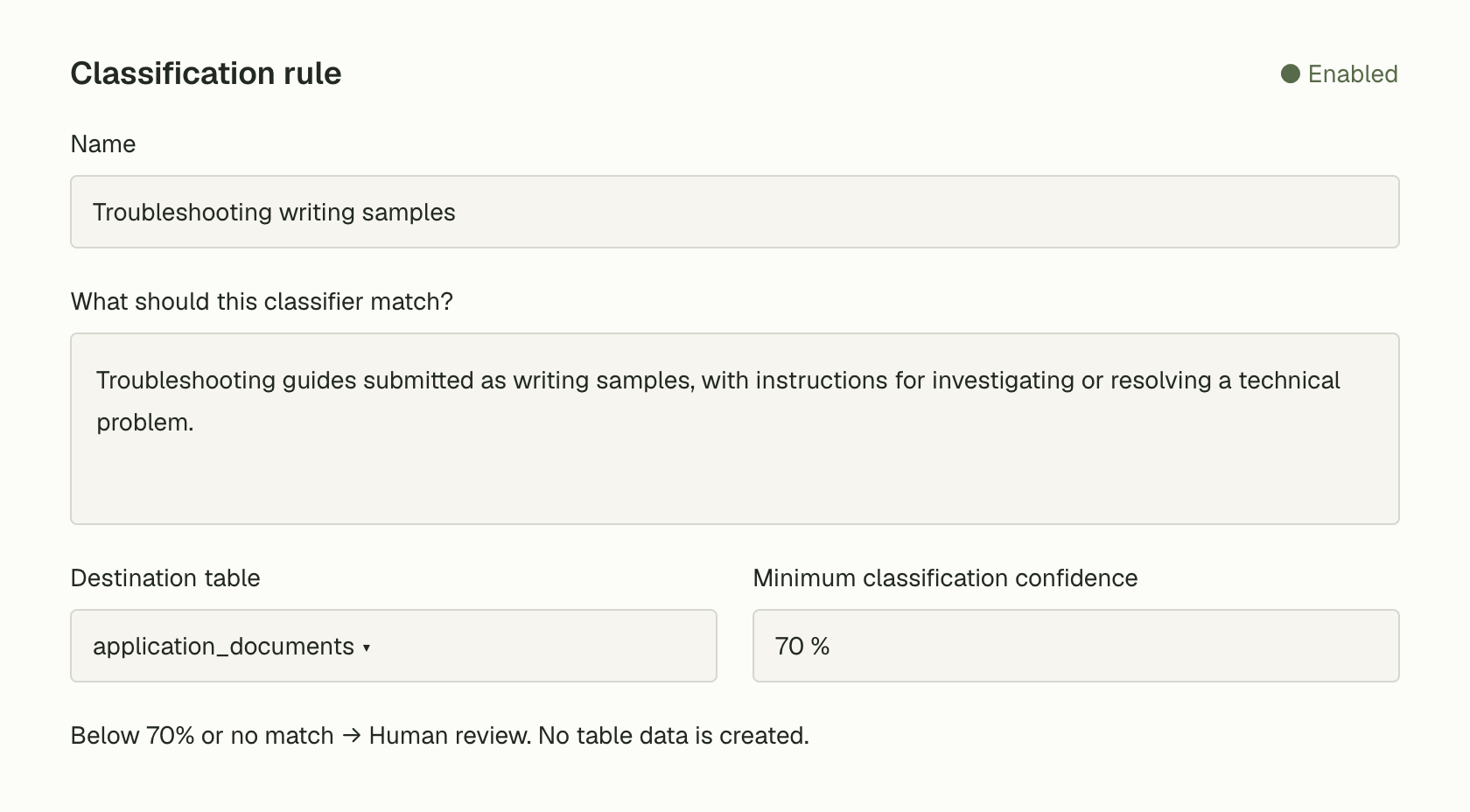
The confidence setting controls when PdfParse accepts a document's destination automatically. Candidate suitability is the recruiter's decision, made after the records are extracted.
For the first test, keep the default threshold of 70% and inspect the routing results. If a document is sent to the wrong table, make the matching description more specific before processing more applications. If the destination is uncertain, open Human review, compare the suggestion with the PDF, and select the correct table. The routing review guide covers that decision in detail.
5. Follow the first application through the inbox
Now an application arrives. Alex Morgan emails help@meridiansoftware.example.com with the subject SUPPORT-2026-09 — Alex Morgan. The message includes a two-page CV, a one-page troubleshooting guide, and confirmation of availability for the advertised shift.
To try the example, attach both sample PDFs to a message in your allowed company mailbox. Use SUPPORT-2026-09 — Alex Morgan as the subject and include Alex's availability: “I can cover the advertised 14:00–22:00 UTC support shift, Monday through Friday.” Forward the message to the generated PdfParse address, then open the inbox's Documents tab.
- Confirm that the message was accepted.
- Check that both PDFs appear, rather than just the CV.
- Follow each PDF into its document record and check the routing destination.
- Once extraction finishes, open the destination tables and compare the rows with the original PDFs.
Use the received message to find the two attachments. Check the candidate details against the original email before treating separate document records as one person's application.
For Alex's CV, the expected applications record is:
| Candidate name | Candidate email | Current title |
|---|---|---|
| Alex Morgan | alex.morgan@example.com | Technical Support Specialist |
The related employment row should identify Example Systems, January 2024 through August 2026, and the responsibilities listed on page two. The writing-sample record should describe the guide to investigating an API authentication failure.
Use these sample values to check the extraction. Confirm that the contact email belongs to Alex and that the employment history agrees with page two of the CV.
If the email is absent, check the copied address, allowed sender, and whether the inbox is paused. If the message arrived but a PDF failed, inspect that document's error before resending the application. A message arriving successfully doesn't mean every attachment has finished processing.
6. Review the records and build your shortlist
Now we have the candidate details, employment entries, and writing sample in their tables. This is where the recruiter returns to the job criteria and decides what to do next.
Keep that decision in your usual recruiting tracker, such as a spreadsheet or applicant tracking system. For each application:
- Check the extracted details against the complete CV and writing sample.
- Read the original email in the company mailbox for availability and other answers.
- Record a short note for each requirement, including the source or page that supports it.
- Add suitable candidates to the outreach shortlist and record any questions that need follow-up.
For Alex, a recruiter reviewing the sample documents would record:
| Requirement | Result | Supporting source |
|---|---|---|
| Customer ticket support | Evidence found | CV, page 2 |
| API troubleshooting | Evidence found | CV, page 2; writing sample, page 1 |
| Written guidance | Evidence found | Writing sample, page 1 |
| Advertised shift | Evidence found | Application email |
The documents and email provide evidence for all four requirements, so the recruiter can add Alex to the outreach shortlist after checking the contact details.
If the availability statement is missing, they can instead record “Confirm availability for the advertised shift” and ask Alex for clarification. That is a recruiting follow-up. PdfParse's Human review is where your team handles uncertain document routes and failed extractions.
7. Test the pipeline before forwarding every application
Before turning on recurring forwarding, run a few variations of the same application. We want to check that the PDFs reach the correct tables and that any processing issue is visible.
| Test | Expected result |
|---|---|
| Forward the sample CV and writing guide together | Both PDFs arrive and populate their intended tables |
| Check the experience on CV page two | The employment row agrees with the source page |
| Send a PDF that does not clearly match either rule | An uncertain or unmatched route is available in Human review |
| Forward an application without its writing sample | The CV can still process; the recruiter identifies the missing sample during review |
| Resend a test message | Check the message and document records before deciding whether anything needs resending |
For each test, follow the same path: received message, accepted attachments, routing decision, and extracted rows. Compare those rows with the PDFs and resolve any errors before increasing the volume.
A fresh email containing the same CV can create another submission. Check the candidate and original message in your recruiting tracker before contacting someone twice.
Once those checks pass, create a narrow forwarding rule in your email provider for this role's applications. Send another test through that rule to confirm that it preserves the attachments and uses the sender your PdfParse inbox allows.
If unexpected documents start arriving, use Pause while you adjust the setup. Paused inboxes reject new deliveries, so check the sender's delivery result before resending. If an inbox pauses because page tokens or storage have run out, resolve the account limit and check its status before retrying.
Start with one role and two PDFs
We started with a job description and an email address. We now have an intake pipeline that receives application PDFs, routes each document to its table, and extracts records for the recruiter to review. CV details and employment entries are organized consistently, while processing exceptions have a place in Human review.
Run Alex's two sample PDFs through your inbox before enabling automatic forwarding. Check the destinations, compare the extracted rows with the documents, and use the original email to complete the recruiting review. Once those checks pass, the same setup can handle the next batch of applications.
For more detail on the intake setup, see Introducing Email Inboxes and the email PDF parser overview. For parent and child records, follow How to Extract PDF Data into SQL Tables.